walker's code blog

coder, reader

Collection View With Diffable Datasource

这篇文章有

  • collection view自定义布局的一些心得体会和查阅文档时的一些笔记
  • Compositional layout笔记 (少量)
  • diffable datasource笔记

Compositional Layout

  • Group 宽高给够(或estimate),Item固定大小,就成了一个FlowLayout
  • 设定section垂直方向行为为滚动(分页,靠边等),则不会折行
    • .continuousGroupLeadingBoundary 的意思是如果一行摆不下,正常情况下会折行,这一行后面就会剩下空白,当你做成continous后,下一个元素也会排在空白后,而不是直接就接在后面了
    • .paging.groupPageing的区别则是一次滚动一页还是一个group

Diffable Data Sources

  • A diffable data source stores a list of section and item identifiers
    • In contrast, a custom data source that conforms to UICollectionViewDataSource uses indices and index paths, which aren’t stable.
      • They represent the location of sections and items, which can change as the data source adds, removes, and rearranges the contents of a collection view.
      • 相反Diffable Data Source却能根据identifier追溯到其location
  • To use a value as an identifier, its data type must conform to the Hashable protocol.
    • Hashing能让集合成为“键”,提供快速lookup能力
      • 比如set, dictionary, snapshot
    • can determine the differences between its current snapshot and another snapshot.

Define the Diffable Data Source

@preconcurrency @MainActor class UICollectionViewDiffableDataSource<SectionIdentifierType, ItemIdentifierType> : NSObject where SectionIdentifierType : Hashable, SectionIdentifierType : Sendable, ItemIdentifierType : Hashable, ItemIdentifierType : Sendable

// 声明示例
private var recipeListDataSource: UICollectionViewDiffableDataSource<RecipeListSection, Recipe.ID>!

private enum RecipeListSection: Int {
    case main
}

struct Recipe: Identifiable, Codable {
    var id: Int
    var title: String
    var prepTime: Int   // In seconds.
    var cookTime: Int   // In seconds.
    var servings: String
    var ingredients: String
    var directions: String
    var isFavorite: Bool
    var collections: [String]
    fileprivate var addedOn: Date? = Date()
    fileprivate var imageNames: [String]
}
  1. section是枚举,枚举就是正整数
  2. Recipe conforming to Identifiable,automatically exposes the associated type ID
  3. 整个Recipe结构体不必是Hashable的,因为存在Datasource和Snapshot里的仅仅只是identifiers
    1. Using the Recipe.ID as the item identifier type for the recipeListDataSource means that the data source, and any snapshots applied to it, contains only Recipe.ID values and not the complete recipe data.

Configure the Diffable Data Source

// Create a cell registration that the diffable data source will use.
let recipeCellRegistration = UICollectionView.CellRegistration<UICollectionViewListCell, Recipe> { cell, indexPath, recipe in
    // 会带着cell对象,位置和应的数据源数据来请求配置当前cell 
    // 这里进行了两种配置,
    // 1. 一种是对contentConfiguration进行配置(应该就是包了一层,没对cell暴露出来的subview直接进行设置)
    var contentConfiguration = UIListContentConfiguration.subtitleCell()
    contentConfiguration.text = recipe.title
    contentConfiguration.secondaryText = recipe.subtitle
    contentConfiguration.image = recipe.smallImage
    contentConfiguration.imageProperties.cornerRadius = 4
    contentConfiguration.imageProperties.maximumSize = CGSize(width: 60, height: 60)

    cell.contentConfiguration = contentConfiguration

    // 2. 这里就是直接对cell的subview来进行设置了,所以理论上上一节的内容应该也可以直接对cell来配置
    if recipe.isFavorite {
        let image = UIImage(systemName: "heart.fill")
        let accessoryConfiguration = UICellAccessory.CustomViewConfiguration(customView: UIImageView(image: image), placement: .trailing(displayed: .always), cell.accessories = [.customView(configuration: accessoryConfiguration)]
    } else {
        cell.accessories = []
    }
}

// Create the diffable data source and its cell provider.
recipeListDataSource = UICollectionViewDiffableDataSource(collectionView: collectionView) {
    collectionView, indexPath, identifier -> UICollectionViewCell in
    // `identifier` is an instance of `Recipe.ID`. Use it to
    // retrieve the recipe from the backing data store.
    let recipe = dataStore.recipe(with: identifier)!
    // 这里既是传入注册cell的方法的地方,也是那个方法的handler里三个参数的来源
    return collectionView.dequeueConfiguredReusableCell(using: recipeCellRegistration, for: indexPath, item: recipe)
}
  • The configureDataSource() method creates a cell registration and provides a handler closure that configures each cell with data from a recipe.

Load the Diffable Data Source with Identifiers

private func loadRecipeData() {
    // Retrieve the list of recipe identifiers determined based on a
    // selected sidebar item such as All Recipes or Favorites.
    guard let recipeIds = recipeSplitViewController.selectedRecipes?.recipeIds()
    else { return }

    // Update the collection view by adding the recipe identifiers to
    // a new snapshot, and apply the snapshot to the diffable data source.
    var snapshot = NSDiffableDataSourceSnapshot<RecipeListSection, Recipe.ID>()
    snapshot.appendSections([.main])
    snapshot.appendItems(recipeIds, toSection: .main)
    recipeListDataSource.applySnapshotUsingReloadData(snapshot) // 初始化用这个,reload代表完全重设
    // 更新的话用 apply(_:animatingDifferences:) 这样有动画
}

Insert, Delete, and Move Items

  • To handle changes to a data collection, the app creates a new snapshot that represents the current state of the data collection and applies it to the diffable data source.
  • The data source compares its current snapshot with the new snapshot to determine the changes.
  • Then it performs the necessary inserts, deletes, and moves into the collection view based on those changes.
var snapshot = NSDiffableDataSourceSnapshot<RecipeListSection, Recipe.ID>()
snapshot.appendSections([.main]) // section是直接重建的,而不是从哪去retrieve一个, 因为它代表的是ID,只要值一致就行
snapshot.appendItems(selectedRecipeIds, toSection: .main) // 这里是.main的全量数据,即增删后的结果集
recipeListDataSource.apply(snapshot, animatingDifferences: true)
  • 增删其实就是新建一个snapshot,datasource会根据identifiers来比较哪些多了哪些少了。
    • 因为只比较“数量“,所以只要用这些id去新建snapshot就可以了,不存在把旧的retrieve出来

Update Existing Items

  • To handle changes to the properties of an EXISTING item, an app retrieves the current snapshot from the diffable data source and calls either reconfigureItems(_:) or reloadItems(_:) on the snapshot. -> then Apply to snapshot
var snapshot = recipeListDataSource.snapshot()  // 这次是retrieve了
// Update the recipe's data displayed in the collection view.
snapshot.reconfigureItems([recipeId]) // 传入identifier
recipeListDataSource.apply(snapshot, animatingDifferences: true)
  • the data source invokes its cell provider closure,

Populate Snapshots with Lightweight Data Structures

  • 对整个item对象做Hash,适用于快速建模,或数据源不会变更的场景(比如菜单)。
    • 因为item对象的任何属性变化都会被认为有过改动导致重绘,也会产生一些副作用,比如重绘之前的状态都会被清掉(如selected)
  • 实践中,不会对设置datasource的时候专门给个identifier集合,而数据源用别的集合,每次都是用identifier从集合里找item这种方式,而是重写item的hash方法和equal方法,让其只观察id字段

NSDiffableDataSourceSnapshot

  • A representation of the state of the data in a view at a specific point in time.
  • Diffable data sources use snapshots to provide data for collection views and table views.
  • You use a snapshot to set up the initial state of the data that a view displays, and you use snapshots to reflect changes to the data that the view displays.
  • The data in a snapshot is made up of the sections and items
    • Each of your sections and items must have unique identifiers that conform to the Hashable protocol.
// Create a snapshot.
var snapshot = NSDiffableDataSourceSnapshot<Int, UUID>()        

// Populate the snapshot.
snapshot.appendSections([0])
snapshot.appendItems([UUID(), UUID(), UUID()])

// Apply the snapshot.
dataSource.apply(snapshot, animatingDifferences: true)

NSDiffableDataSourceSectionSnapshot

  • A representation of the state of the data in a layout section at a specific point in time.

    • 注意与dataSourceSnapshot定义的区别
  • A section snapshot represents the data for a single section in a collection view or table view.

  • Through a section snapshot, you set up the initial state of the data that displays in an individual section of your view, and later update that data.

  • You can use section snapshots with or instead of an NSDiffableDataSourceSnapshot

  • Use a section snapshot when you need precise management of the data in a section of your layout

    • such as when the sections of your layout acquire their data from different sources.
    • 不同的section来自不同的数据源的话,倾向于用sectionSnapshot
for section in Section.allCases {
    // Create a section snapshot
    var sectionSnapshot = NSDiffableDataSourceSectionSnapshot<String>()

    // Populate the section snapshot
    sectionSnapshot.append(["Food", "Drinks"])
    sectionSnapshot.append(["🍏", "🍓", "🥐"], to: "Food")

    // Apply the section snapshot
    dataSource.apply(sectionSnapshot,
                     to: section,
                     animatingDifferences: true)
}

苹果CollectionView教程文档

The Layout Object Controls the Visual Presentation

  • The layout object is solely responsible for determining the placement and visual styling of items within the collection view
  • do not confuse what a layout object does with the layoutSubviews method used to reposition child views inside a parent view.
    • A layout object never touches the views it manages directly because it does not actually own any of those views.
    • it generates attributes that describe the location, size, and visual appearance of the cells, supplementary views, and decoration views in the collection view.
    • It is then the job of the collection view to apply those attributes to the actual view objects.
    • 这就是需要提供两个代理方法的原因,一个提供view,一个提供布局配置

Transitioning Between Layouts

  • The easiest way to transition between layouts is by using the setCollectionViewLayout:animated: method.
  • However, if you require control of the transition or want it to be interactive, use a UICollectionViewTransitionLayout object.
  • The UICollectionViewTransitionLayout class is a special type of layout that gets installed as the collection view’s layout object when transitioning to a new layout.
    • With a transition layout object, you can have objects follow a non linear path, use a different timing algorithm, or move according to incoming touch events.
  • The UICollectionViewLayout class provides several methods for tracking the transition between layouts.
  • UICollectionViewTransitionLayout objects track the completion of a transition through the transitionProgress property.
  • As the transition occurs, your code updates this property periodically to indicate the completion percentage of the transition.

通用流程:

  1. Create an instance of the standard class or your own custom class using the initWithCurrentLayout:nextLayout: method.
  2. Communicate the progress of the transition by periodically modifying the transitionProgress property. Do not forget to invalidate the layout using the collection view’s invalidateLayout method after changing the transition’s progress.
  3. Implement the collectionView:transitionLayoutForOldLayout:newLayout: method in your collection view’s delegate and return your transition layout object.
  4. Optionally modify values for your layout using the updateValue:forAnimatedKey: method to indicate changed values relevant to your layout object. The stable value in this case is 0.

Customizing the Flow Layout Attributes

  • Flowlayout在一条线上排列元素,到达了边界就换行,新起一条线
  • 元素大小可以通过itemSize 属性设置,如果大小不同,则通过[collectionView:layout:sizeForItemAtIndexPath:](https://developer.apple.com/documentation/uikit/uicollectionviewdelegateflowlayout/1617708-collectionview)代理方法设置
  • 但是,同一行上不同的高度的cell会垂直居中排列,这点要注意
  • minimum spacing设置的只是同一行元素的“最小间距”,如果布局的时候一行下一个元素放不下了,但是剩余的空间很多,这个一行的元素间距会拉大
    • 行间距同理,根据上一条描述,元素是垂直居中排列的,所以最小行间距设置的是上下两行间最高的元素的距离
CALayer应用mask实现为文字部分涂抹

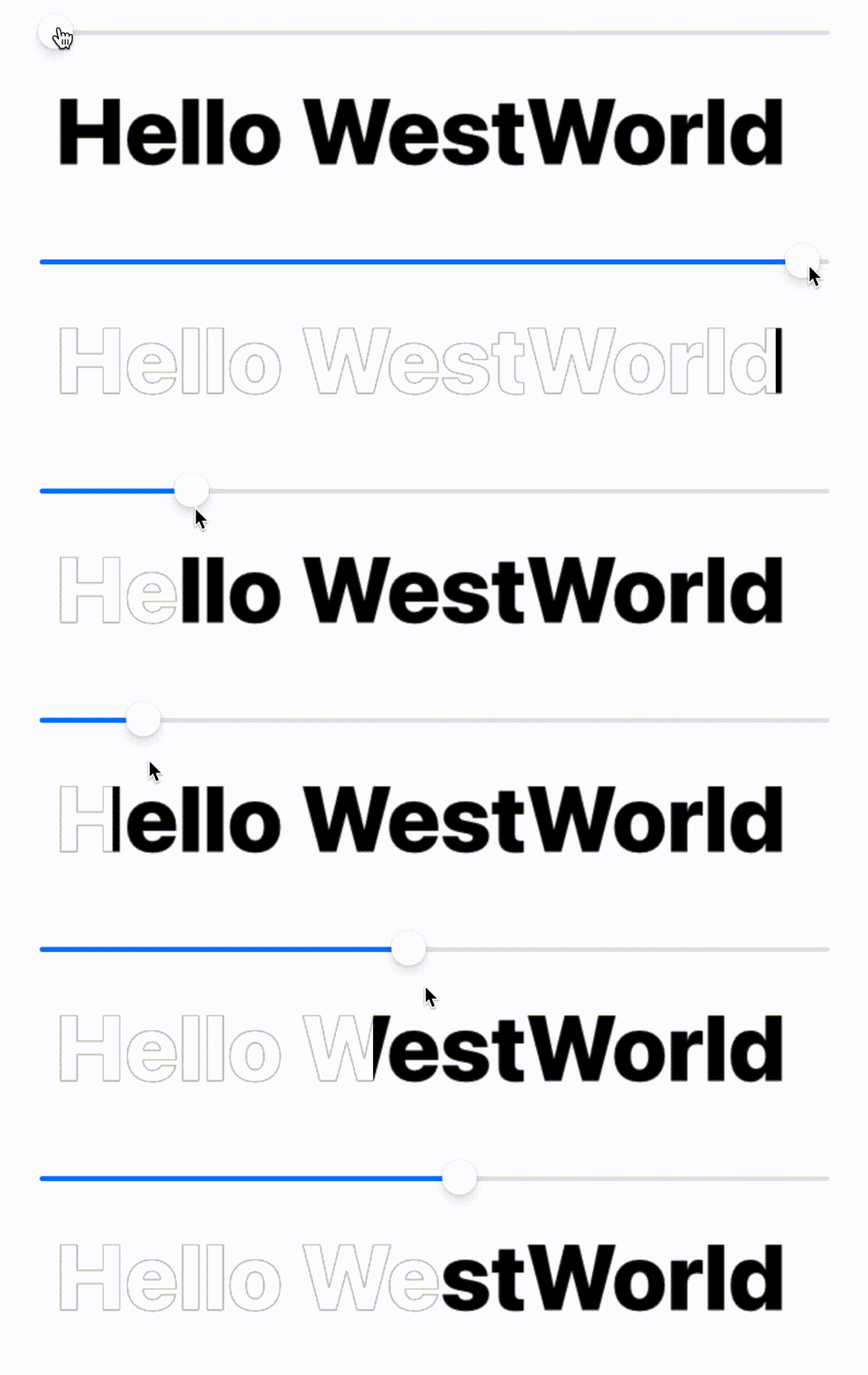
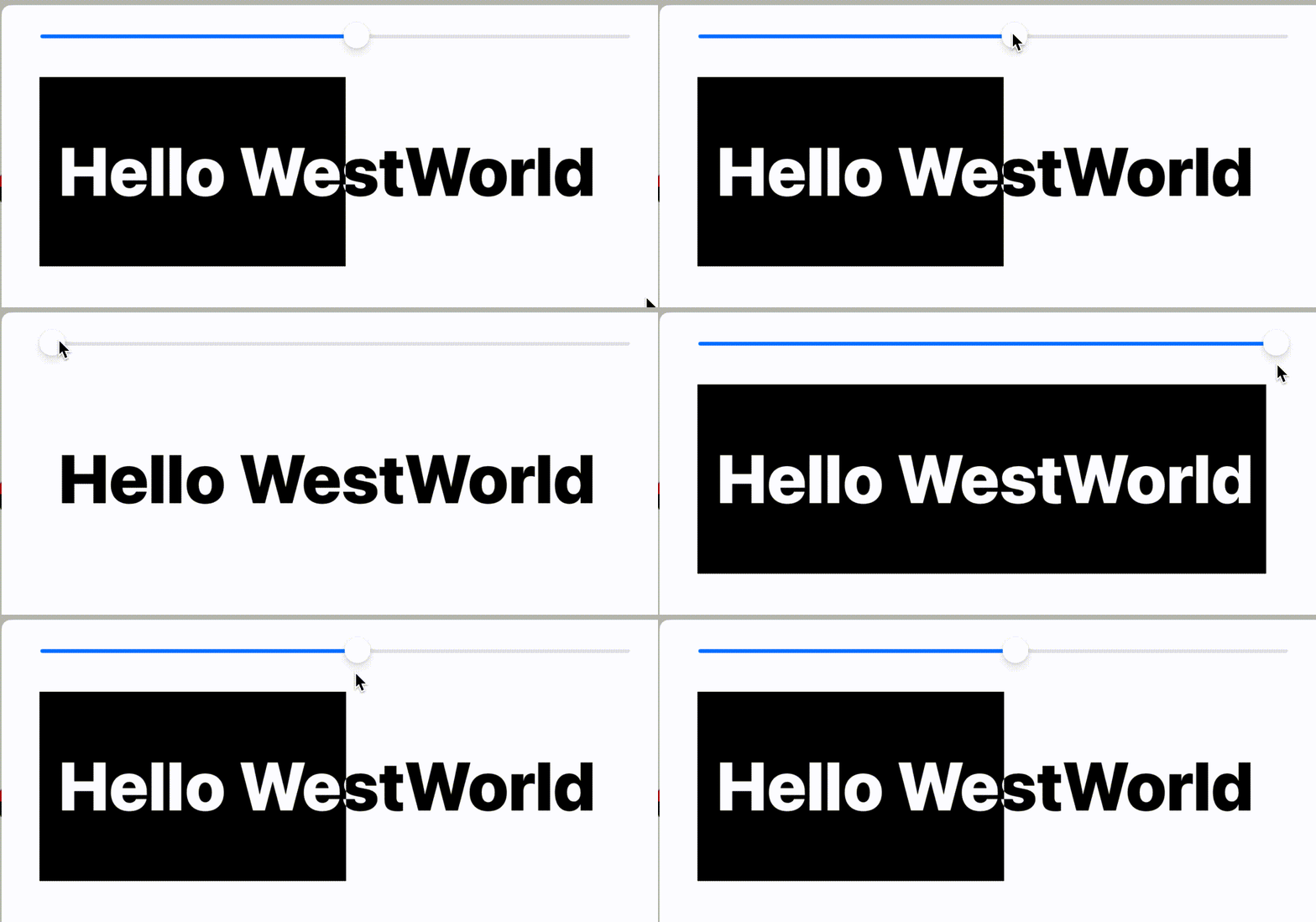
先看效果,白底黑字,随着拖动,逐渐变成黑底白字(注:因为项目关系,效果是带着底色拖动,所以以这种效果来讲解,如果只是改文字颜色,就是只涂抹文字,会稍微简单一些,请触类旁通)

20220714161447

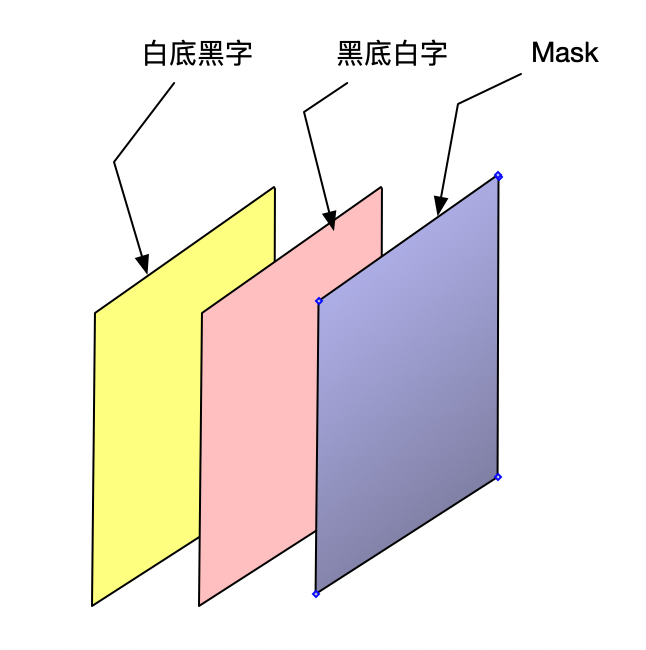
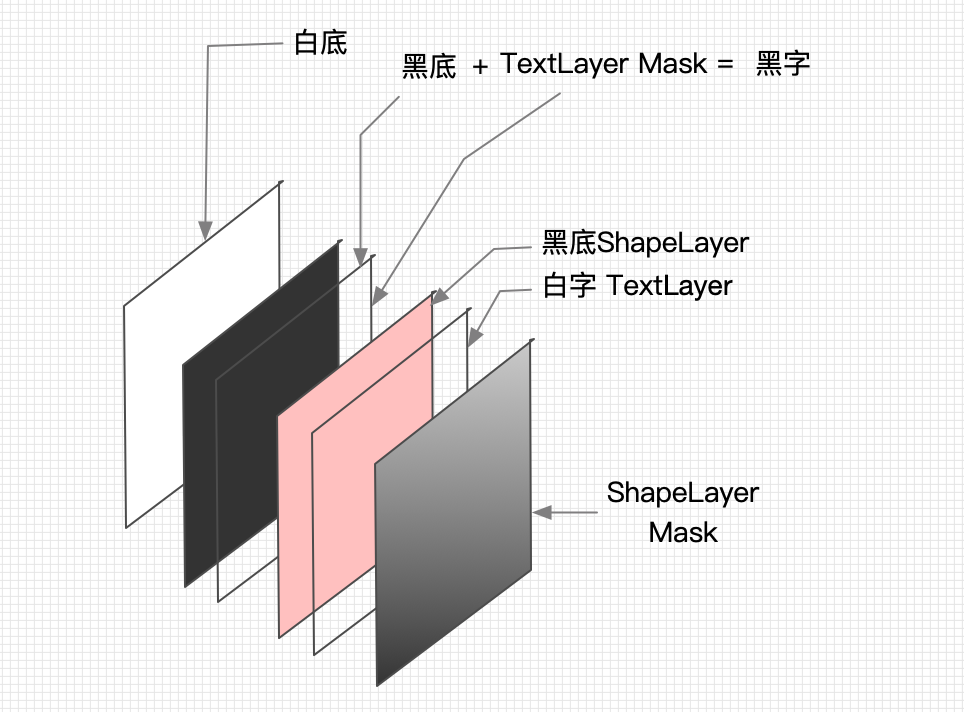
思路:底层(白底黑字),表层(黑底白字),对表层应用蒙板,蒙板的frame由手势控制

image-20220714193234444

本质上是CALayer的mask,但我们先用两个UIView来实现一下,因为它直观且简单:

- (void)viewDidLoad {
    [super viewDidLoad];
    // create wrapper view 省略

    // 底层白底黑字
    self.wrapper.backgroundColor = UIColor.whiteColor;
    UILabel *lbl = [self createLabel];
    lbl.textColor = UIColor.blackColor;
    [self.wrapper addSubview:lbl];

    // 表层黑底
    UIView *cover = [UIView new];
    cover.backgroundColor = UIColor.blackColor;
    cover.frame = self.wrapper.bounds;
    [self.wrapper addSubview:cover];
    // 白字
    UILabel *lbl2 = [self createLabel];
    lbl2.textColor = UIColor.whiteColor;
    [cover addSubview:lbl2];

    // mask的width从0到100%
    self.mask = [UIView new];
    self.mask.frame = CGRectMake(0, 0, 0, self.wrapper.frame.size.height);
    self.mask.backgroundColor = [UIColor blackColor];
    cover.maskView = self.mask;
}

- (UILabel *)createLabel {
  // ...
}

- (IBAction)slidechanged:(UISlider *)sender {
    self.mask.frame =  CGRectMake(0, 0, self.wrapper.frame.size.width * sender.value, self.wrapper.frame.size.height);
}

UIView当然本质上用的都是CALayer,那么我用CALayer改写会怎样呢?

结构:UIView黑底+CATextLayer Mask > CAShapeLayer黑底 > CATextLayer白字, 对shapeLayer应用mask

- (void)viewDidLoad {
  [super viewDidLoad];
  // create wrapper 省略

  // 底部文字,黑底+文字mask
  self.wrapper.backgroundColor = [UIColor blackColor];
  CATextLayer *bottom  = [self createTextLayer:self.wrapper.frame];
  self.wrapper.layer.mask = bottom;

  // 顶部背景layer+顶部文字layer
  CAShapeLayer *top    = [CAShapeLayer new];
  top.backgroundColor  = [UIColor redColor].CGColor;  // 原本是黑底白字,后面解释为什么改成了红底
  top.frame = self.wrapper.frame;
  CATextLayer *toptext = [self createTextLayer:self.wrapper.bounds];
  toptext.foregroundColor = [UIColor whiteColor].CGColor;
  [top addSublayer:toptext];
  [self.wrapper.layer addSublayer:top];

  self.mask = [CAShapeLayer new];
  self.mask.frame = CGRectMake(0.0f, 0.0f, 0.0f, self.wrapper.frame.size.height);
  self.mask.backgroundColor = [UIColor blackColor].CGColor;
  top.mask = self.mask;
}

- (CATextLayer *)createTextLayer:(CGRect)frame {
    CATextLayer *layer = [CATextLayer new];
    layer.frame = frame;
    layer.font = (__bridge CFTypeRef)[UIFont systemFontOfSize:12.0f weight:UIFontWeightHeavy];  // 这里字号是无效的
    layer.fontSize = 73.0f; // 在这里设置字号
    layer.string = @"Hello WestWorld";
    return layer;
}

结果却得到这个:

20220714180940

黑底只剩下了黑边,观察到三个现象:

  1. 对根layer进行mask,其sublayer都是被mask的
  2. 用文字对文字做mask,是会描边的(这一点做了额外几个测试证明了)
  3. 动画没有那么跟手(人在前面跑,魂在后面追),都有动量的感觉了,对比UIView的方案看看

先来拣第二个软柿子捏,猜测用CAShapeLayer来做cover应该不会有描边,也就是说注释掉以下几行

CATextLayer *toptext = [self createTextLayer:self.wrapper.frame];
toptext.foregroundColor = [UIColor whiteColor].CGColor;
[top addSublayer:toptext];

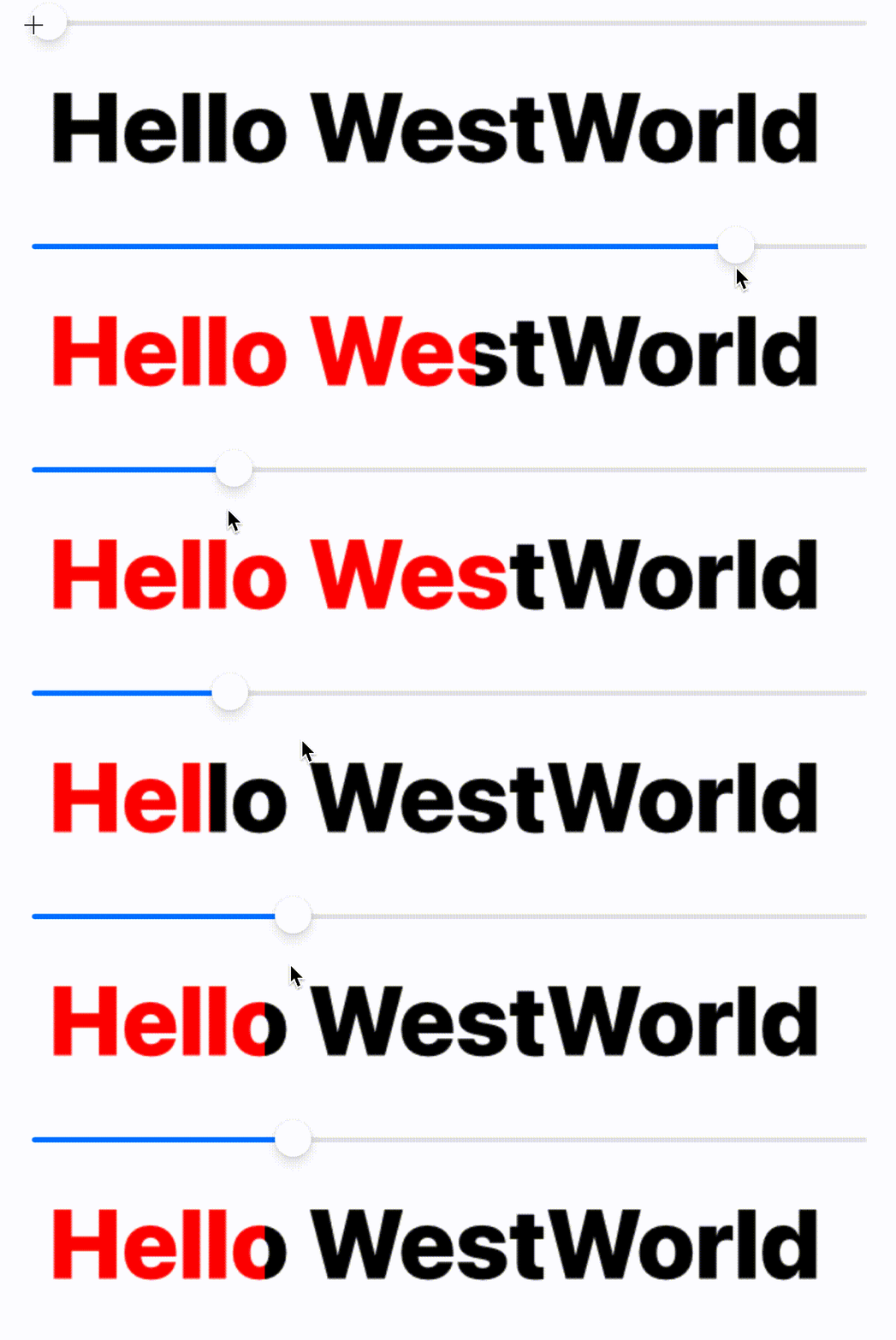
效果如期望的那样,(这次没有描边了,所以就换了个颜色,不然白底白字就看不见了)

20220714184942

这次我们不用根layer做mask,添加一个层:

// 底部文字,黑底+文字mask
CATextLayer *bottom  = [self createTextLayer:self.wrapper.bounds];
// self.wrapper.backgroundColor = [UIColor blackColor];
// self.wrapper.layer.mask = bottom; 
// 对根layer进行mask,会把sublayer全部mask了
// 所以添加一个layer
CAShapeLayer *bottomShape = [CAShapeLayer new];
bottomShape.frame = self.wrapper.bounds;
bottomShape.backgroundColor = [UIColor blackColor].CGColor;
bottomShape.mask = bottom;
[self.wrapper.layer addSublayer:bottomShape];
20220714191352

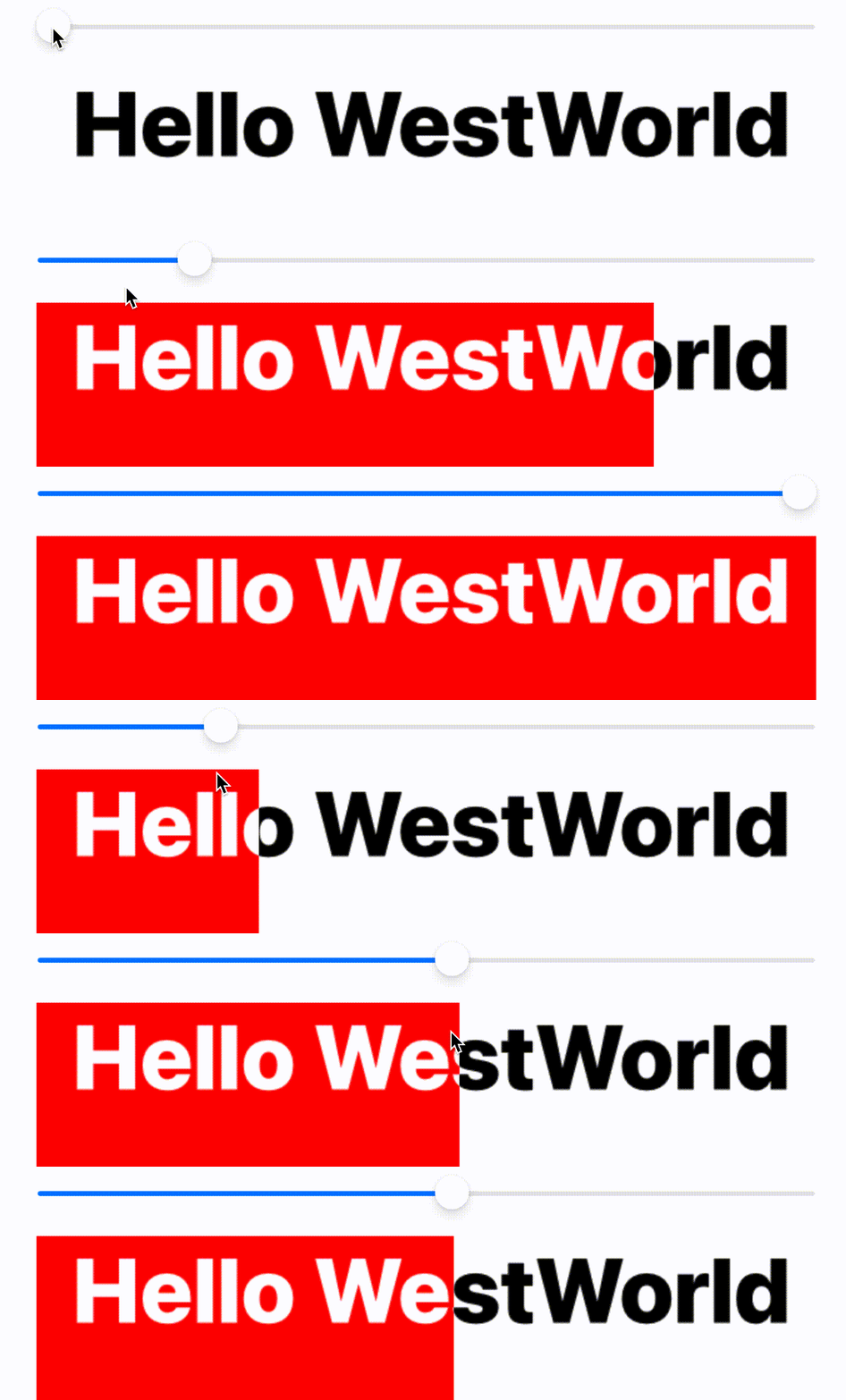
现在如愿以偿,整个结构也只有一个UIView了,相比UView的方案,显然在查看视图结构的时候要简化得多,(动画效果仍然是魂在后面追...),但是,这次仍然是文字对文字做mask,这次却没有描边了:

image-20220714191856600

难道只有根layer上才会描?不继续探索了。

最后,解释一下对直接操作CALayer为什么反应还慢半拍呢?因为CALayer的大部分属性的改变是自带了动画的,在这个例子里得到了充分的证明。

补充一下全部用CALayer的结构

Advanced Graphics With Core Animation 笔记

Core Animation

Source

Core Graphics

  • Core Animation is supposed to be the graphics system of the framework, but there is also Core Graphics.
  • Core Graphics is entirely done on the CPU, and cannot be performed on the GPU.
    • Because it is an entirely CPU-bound operation
  • you can combine it with Core Animation.
    • You can use Core Graphics to create the actual bitmaps, and use Core Animation to display them to create some cool effects.

Core Animation

  • It is comprised of a series of layout objects. >>> typically CALayer
import QuartzCore

let newLayer = CALayer()
newLayer.frame = CGRectMake(0, 0, 100, 100)
newLayer.backgroundColor = UIColor.redColor().CGColor
newLayer.cornerRadius = 10

UIKit

  • Everything you see when you look at a UIView is not being done on the UIView level, but by a backing layer attached to that view.
  • The layer is providing the visual content,
  • UIView is providing other things:
    • order layout functionality, touch recognition, guest recognizers.
public class UIView {
   public var layer: CALayer { get }
}

为什么不让UIView直接继承CALayer

  • CALayer确实有自己的子类
  • 它们可以插入UIView的subLayer中,并指定其为暴露的那个layer,这种设计决定了它需要有一个“容器"
  • 比如用一个渐变的layer子类来替换原来的layer:
public class MyGradientClass : UIView {
    override class func layerClass() -> AnyClass {
       return CAGradientLayer.self
    }
}
  • Mapping contents to CALayer: someLayer.contents = someImage.CGImage
    • the .contents property is animatable

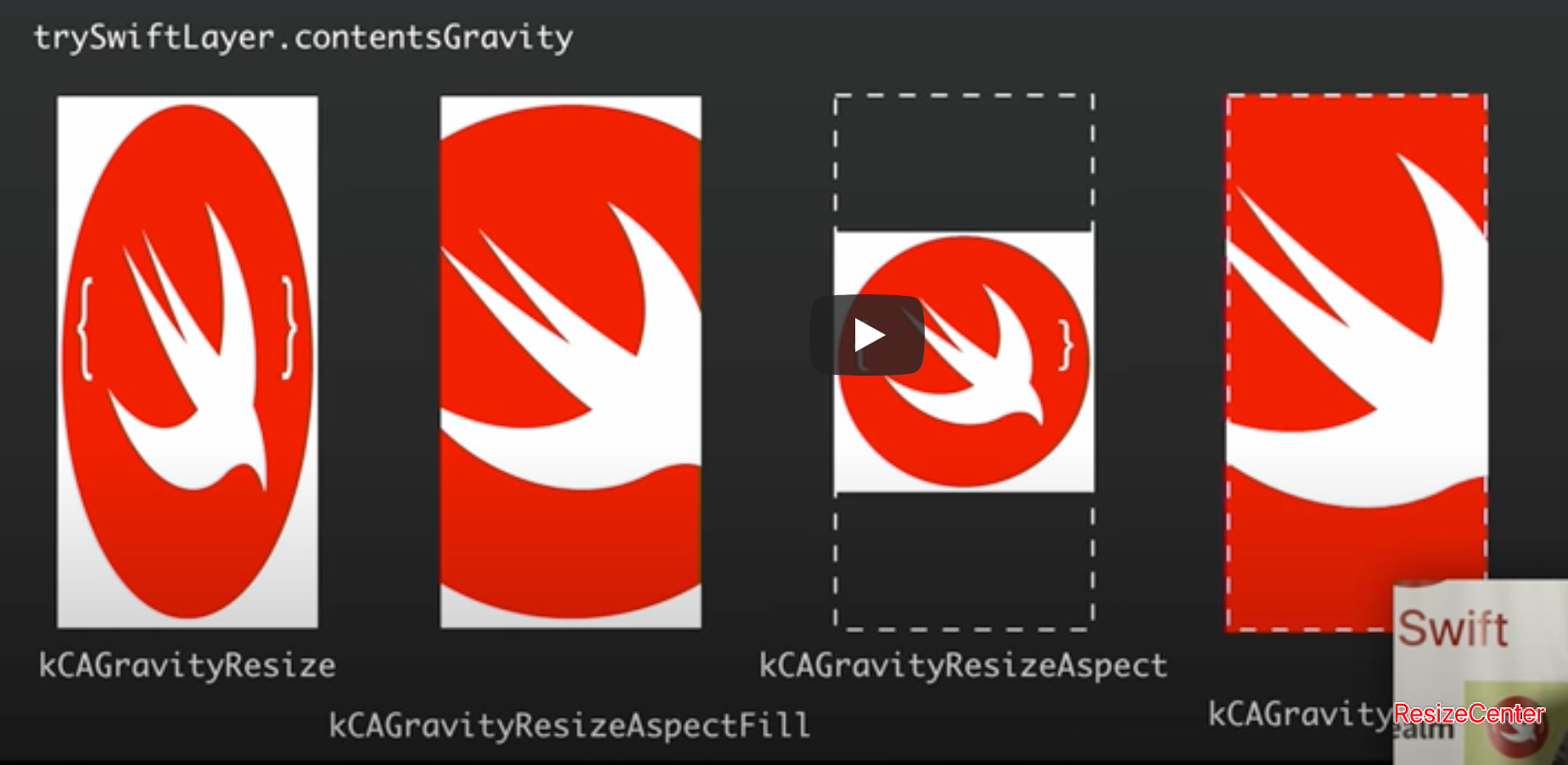
Scale (with contentGravity property):

image-20220515014627253
  • 场景一:屏幕向下拉,背景图越变越大(根据设置的填充和变形方式,以及容器的frame)
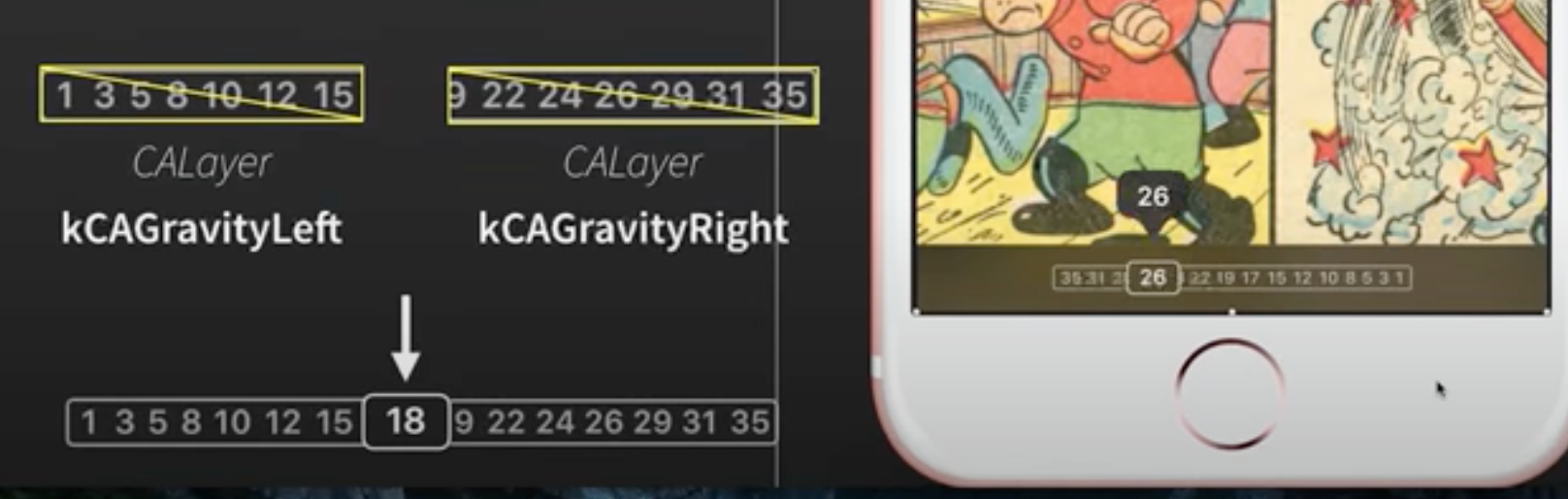
  • 场景二:类似macOS的docker,鼠标(滑块/slider)在图标上滚过的时候放大,处理为一个滑块,和左右两个layer,分别设置了只显示左边或右边的gravity
image-20220515021047122

我本以为是两张页码背景图是重合的,根据滑块位置来“切”掉对应的左侧图和右侧图,但是显然这个方案是左右两个背景图是并列的,它同时改的两个图的frame(其实就是width加起来永远是100%),然后设置resize的方案是让左边的从左显示起,右边的从中显示起就行了

但仔细一想,仍然可以理解为两张图是重合的,分别往左右两方去resize使得两张图的frame并不相交而已

场景二的其它方案:

  • Because this method leverages the GPU, it is incredibly performant.
  • There are other ways you could have gone about doing this.
    • For example, using a masking layer, or doing it in Core Graphics.
    • But, because both of them would have leveraged the CPU, it would have been slower.

Bitmap Sampling in CALayer

  • Core Animation also exposes settings that lets you configure which resizing resampling algorithms the GPU uses.
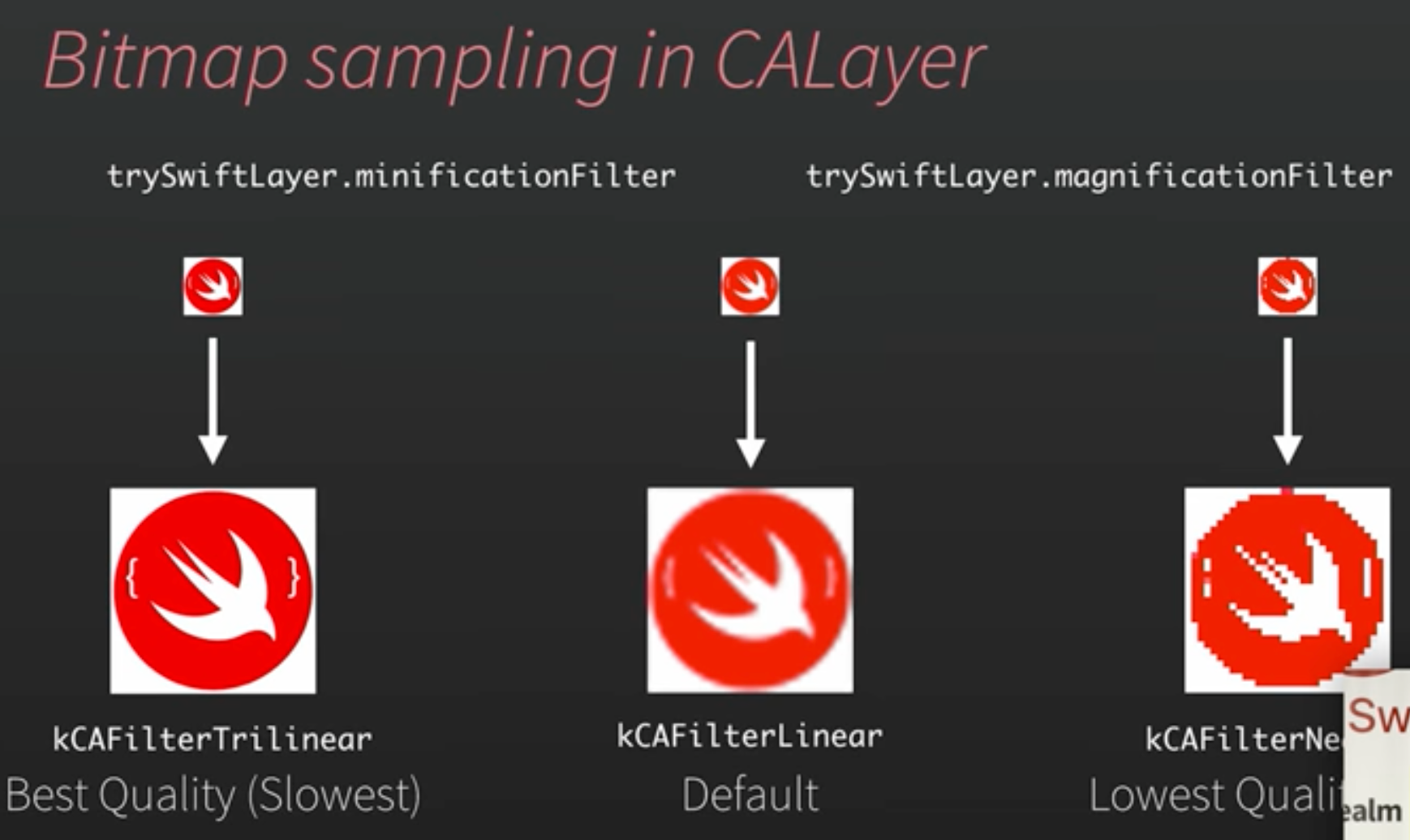
  • Whenever you change the size of a layer and the size no longer matches the original size of the bitmap mapped to it, resampling needs to be done to make sure it does not look jagged or distorted.
    • By default, the sampling mode that Core Animation uses is called bilinear filtering (kCAFilterLinear), a simple linear interpolation between two pixels. (线性插值最快)
    • Sometimes, even bilinear filtering is too slow. If you are rapidly resizing a frame during animation, you might get stuttering.
      • 这时可以使用 nearest (kCAFilterNearest). Nearest mode completely disables pixel resampling.
    • trilinear filtering (kCAFilterTrilinear) 则能提供最好的resampling质量,the GPU will generate differently sized versions of the same bitmap, and blend them together to create resizing of the texture in question.
      • 最慢,而且把CPU也拉进来了
image-20220515023547309

最近邻插值图像质量最差,但也最省资源最快速,用在动画切换场景(视频里演示了app退到桌面时,app的icon由当前app界面的截图逐渐变回logo的过程,这个截图显然就不需要高质量的图片)

  • 同时也暗示了在图片展示区域本来就很小时,也没必要应用高质量scale
  • 或者动画相当快时,也尽量用最近邻插值

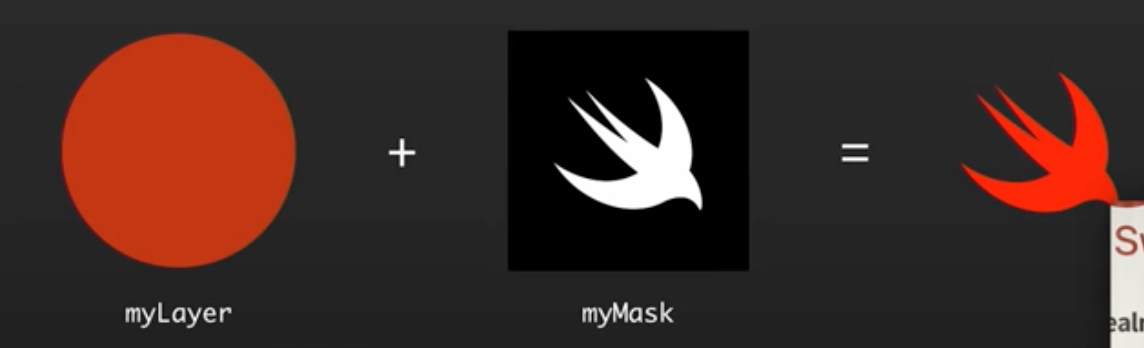
Masking CALayer Objects

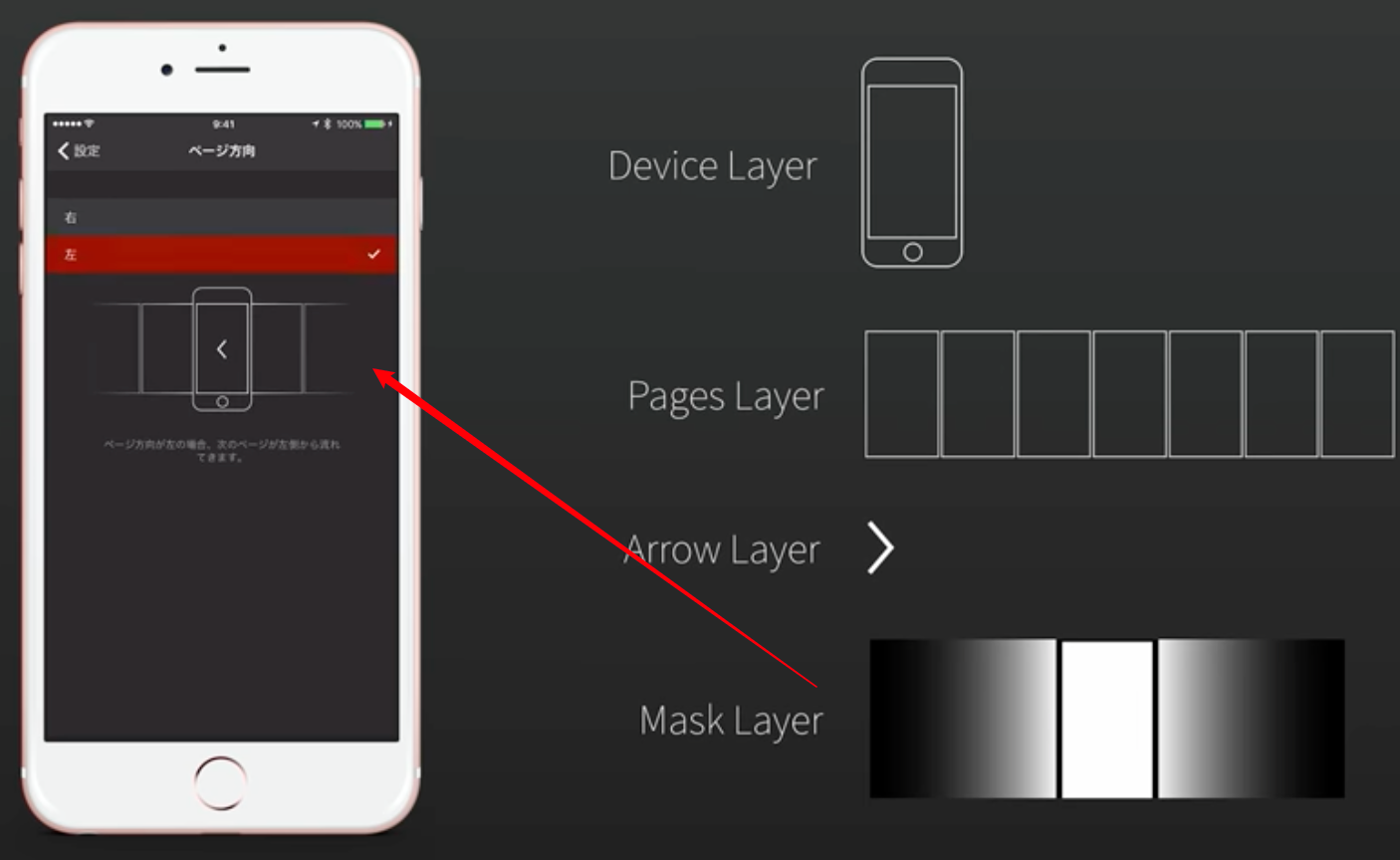
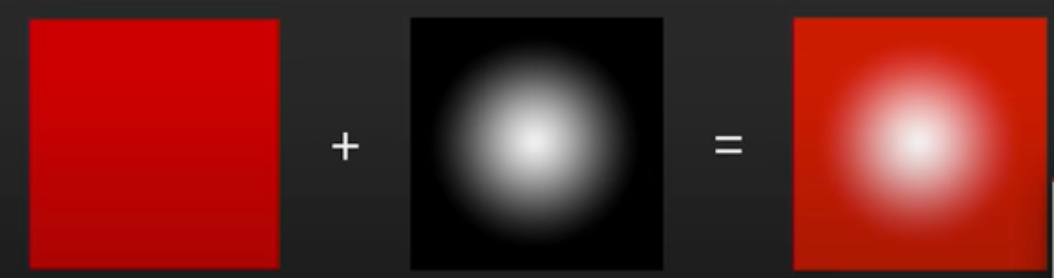
  • 让一个layer(A)成为另一个layer(B)的mask属性

  • A会被B(涂黑的区域)clip,同时仍然具有功能性,交互性,和动画性

    涂黑就是不显示
image-20220622143708966

Adding Shadows to CALayer

The following code will indeed render a shadow. However, because the system has to do a per pixel comparison to work out the size of the shadow, it will be incredibly slow in terms of rendering and animation.

let myLayer = view.layer
 myLayer.shadowColor = UIColor.blackColor().CGColor
 myLayer.shadowOpacity = 0.75
 myLayer.shadowOffset = CGSizeMake(5, 10)
 myLayer.shadowRadius = 10

// IMPORTANT FOR PERFORMANCE
let myShadowPath = UIBezierPath(roundedRect:
                     view.bounds, cornerRadius: 10)

myLayer.shadowPath = myShadowPath.CGPath

As a result, whenever you are working with shadows in Core Animation, you should always make sure to set the .shadowPath property. This property will tell Core Animation in advance what the shape of the shadow will be, reducing render time.

Transforming a CALayer

  • Core Animation also provides a transform property on CALayer.
  • Unlike the transform property on UIView, which is purely 2D, the one on CALayer provides 3D transformations.
let myLayer = CALayer()
myLayer.contents = self.makeTrySwiftLogoImage().CGImage

var transform = CATransform3DIdentity
transform.m34 = 1.0 / -500
transform = CATransform3DRotate(transform, 45.0f * M_PI / 180.0, 0, 1, 0)
myLayer.transform = transform

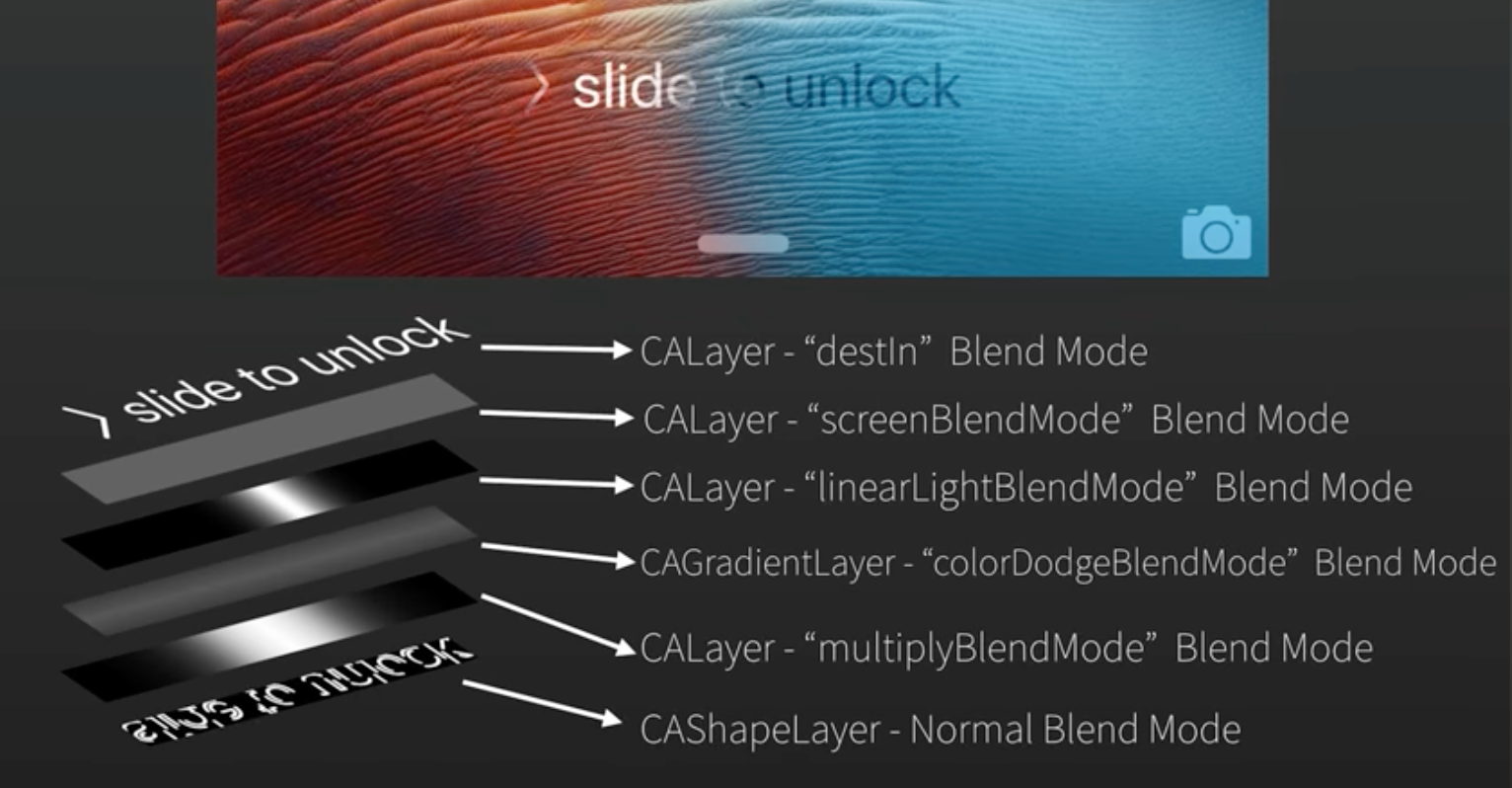
Blend Modes with CALayer

看看就好

let myBlendLayer = CALayer()
myBlendLayer.setValue(false, forKey: allowsGroupBlending) // PRIVATE
myBlendLayer.compositingFilter = screenBlendMode"
myBlendLayer.allowsGroupOpacity = false
myLayer.addSublayer(myBlendLayer)
image-20220622145432815

苹果的"slide to unlick"重度应用了blend mode(注意那道左右跑动的流光)

image-20220622145619139

Animating with Core Animation

UIView实现方式:

let trySwiftLayer = //...

let myAnimation = CABasicAnimation(keyPath: position.x)
myAnimation.duration = 2
myAnimation.fromValue = trySwiftLayer.position.x
myAnimation.toValue = trySwiftLayer.position.x + 500
myAnimation.timingFunction = kCAMediaTimingFunctionEaseInEaseOut
myAnimation.repeatCount = .infinity

trySwiftLayer.addAnimation(myAnimation, forKey: myAnimationKeyName)
  • You can access these animations from the .animationsKeys property of the layer.
// timing function
let timingFunction = CAMediaTimingFunction(controlPoints: .08, .04, .08, .99)

let myAnimation = CABasicAnimation()
myAnimation.timingFunction = timingFunction
  • 资源: http://cubic-bezier.com

  • 如果你要实现一个cross fade的效果,可能想的是两个view,同时切换alpha由0到1(和相反)

    • 当同时达到0.5时,人眼能捕捉到这一刻,两个图片都非常明显
// animating a calayer's contents
let imageView = UIImageView()
let onImage = UIImage()
let offImage = UIImage()

let myCrossfadeAnimation = CABasicAnimation(keyPath: contents)
myCrossfadeAnimation.fromValue = offImage.CGImage
myCrossfadeAnimation.toValue = onImage.CGImage
myCrossfadeAnimation.duration = 0.15

imageView.layer.addAnimation(myCrossfadeAnimation,
                               forKey: myCrossfadeAnimationKeyName)

imageView.image = onImage

CAKeyframeAnimation

  • you can chain up multiple animation points within one object(本文未阐述).
  • each keyframe point can have a CG path object assigned, which lets you create animations that are not just linear, point-to-point transitions, but curves.

就是你要让view按一个cgpath做移动动画,也可以用CAKeyframeAnimation

let rect = CGRectMake(0, 0, 200, 200)
let circlePath = UIBezierPath(ovalInRect:rect)

let circleAnimation = CAKeyframeAnimation()
circleAnimation.keyPath = position
circleAnimation.path = circlePath.CGPath
circleAnimation.duration = 4

// Manually specify keyframe points
// circleAnimation.values = //...
// circleAnimation.keyTimes = //..

let trySwiftLayer = //...
trySwiftLayer.addAnimation(circleAnimation,
                            forKey: position)

CAAnimationGroup

没多说什么,一个简单应用:

let myPositionAnimation = CABasicAnimation.animation(keyPath: position)
let myAlphaAnimation = CABasicAnimation.animation(keyPath: opacity)

let animationGroup = CAAnimationGroup()
animationGroup.timingFunction = kCAMediaTimingFunctionEaseInEaseOut
animationGroup.duration = 2
animationGroup.animations = [myPositionAnimation, myAlphaAnimation]

let trySwiftLayer = CALayer()
trySwiftLayer.addAnimation(animationGroup, forKey: myAnimations)

Completion Handling

// Set a delegate object
let myAnimation = CABasicAnimation()
myAnimation.delegate = self

// Animation completion sent to ‘animationDidStop(anim: finished flag:)

// ———

//Set a closure to be executed at the end of this transaction
CATransaction.begin()

CATransaction.setCompletionBlock({
   // Logic to be performed, post animation
})

CATransaction.commit()

Features of Core Animation Subclasses

本节内容可看一个更好的RayWenderlich教程

In iOS, Apple provides a variety of CLS subclasses, with many different features.

  • Some of these subclasses rely on the CPU for the operations which they perform; it may be necessary to test these on certain devices to make sure they fill your specific needs.
  • To insert a CLS subclass into a UIView, all you need to do is subclass the UIView, and then override its layer class property.
public class MyGradientClass : UIView {
  override class func layerClass() -> AnyClass {
    return CAGradientLayer.self
  }
}
  • CATileLayer, 基于矢量绘图的层,可以无限放大
  • CAgradientLayer 运行在GPU上,非常快,通常用在用了3D变形的Layer场景,添加景深投影等效果
  • CAReplicaterLayer 一个可以被复制多次的layer(on the GPU),而且复制产物还能更改自己的颜色,位置等
  • CAShapeLayer 拥有一个CGPath属性很容易进行fill, stroke等绘制,参考UAProgressView项目应用
  • CAEmitterLayer 参考一个Partical Playground的Mac app,能够“发射”出其它的layer,并animat它
  • CATextLayer
  • CAScrollayer
  • CATransformLayer
  • CAEAGLayer, CAMetalLayer

资源

js spread syntax

前段为这个解析api的dom元素生成的小工具继confluence, swagger之后又增加了yapi的支持,用到了不少展开语法(...),特整理记录一下

Dictionary

// 得到字典所有key的方法:
Object.keys(dict)
// 得到字典所有key, value的方法: 
Object.entries(dict).map(([k,v],i) => k)
// 根据字段过滤:
var filtered = Object.fromEntries(Object.entries(dict).filter(([k,v]) => v>1));
// 或者用assign和spread syntax:
var filtered = Object.assign({}, ...
Object.entries(dict).filter(([k,v]) => v>1).map(([k,v]) => ({[k]:v}))

Array

// HTMLCollection to Array
var arr = Array.prototype.slice.call( htmlCollection )
var arr = [].slice.call(htmlCollection);
var arr = Array.from(htmlCollection);
var arr = [...htmlCollection];

// remove duplicates (distinct)
let chars = ['A', 'B', 'A', 'C', 'B'];
let uniqueChars = [...new Set(chars)];

String

// 遍历一个数字的每一位
[...1e4+''].forEach((_, i) => {
        console.log(i)
});

// 首字母大写
function capitalizeFirstLetter([first, ...rest]) {
  return first.toUpperCase() + rest.join('');
}

很有python的风格啊

CocoaPods创建私有库过程拾遗

创建私有podspec

完整教程网上很多,我这里是曲曲折折弄好后的一些要点记录,里面的一些路径和库共同自某篇教程,可以直接看他们的教程。

想看极简的骨架过程可以参考我下面的笔记,当然肯定缺少很多细节,主要是记录一下核心思路,里面的一些库地址出于隐私我就使用了他们公布在网上的而不是自己的真实地址。

首先,涉及两个仓库,一个放代码,一个放spec,放spec的就是私有库

# 创建私有库 (就是host podspec文件的容器)
pod repo add WTSpecs https://coding.net/wtlucky/WTSpecs.git  #(这是spec仓库)

## 如果不是新建,删除和添加已有的语法:
pod repo remove WTSpecs
pod repo add WTSpecs [email protected]:wtlucky/WTSpecs.git

# 创建pod lib(就是普通项目文件)
pod lib create podTestLibrary
### 可以选择尝试编辑一个组件放入Pod/Classes中,然后进入Example文件夹执行pod update命令,再打开项目工程可以看到,刚刚添加的组件已经在Pods子工程下

# 推送lib到remote
git add .
git commit -s -m "Initial Commit of Library"
git remote add origin [email protected]:wtlucky/podTestLibrary.git  # 添加远端仓库(这是代码仓库)
git push origin master     # 提交到远端仓库

# 打rag,推tag
git tag -m "first release" 0.1.0
git push --tags     #推送tag到远端仓库

# 编辑podspec
### 请查阅相关字段文档,注意编辑tag号与你推的tag号一致
### 特别注意
### source_files(源码路径,一般在在libNmae/Classes/**/*), 
### resource_bundles(比如.bundle, .xcassets等), 
### public_header_files(可以理解为Umbrella Header), 
### prefix_header_file(就是.pch文件)

# lint podspec(注意allow-warnings)
pod lib lint  --allow-warnings 
## 如果有私有源:
pod lib lint --sources='YourSource,https://mirrors.tuna.tsinghua.edu.cn/git/CocoaPods/Specs.git'
### 前面是私有源,逗号后是官方源,因为我电脑用的是清华源,这里干脆也了设成一致了(不是必要)

# 如果不是用pod创建的项目,自行创建podspec文件:
 pod spec create PodTestLibrary [email protected]:wtlucky/podTestLibrary.git  # 注意仓库名和仓库地址

本地测试podspec, in podfile:

platform :ios, '9.0'

# 几种方式
pod 'PodTestLibrary', :path => '~/code/Cocoapods/podTest/PodTestLibrary'      # 指定路径
pod 'PodTestLibrary', :podspec => '~/code/Cocoapods/podTest/PodTestLibrary/PodTestLibrary.podspec'  # 指定podspec文件
# 向Spec Repo提交podspec(后面的参数是在消警告和错误的过程中加的,你可以尝试无参数先跑,碰到问题再逐个解决)
pod repo push WTSpecs PodTestLibrary.podspec --allow-warnings --use-libraries --skip-import-validation --verbose
### 完了后本地~/.cocoapods/repos和远端spec仓库都应该出现PodTextLibrary/0.1.0这个文件夹(对应你刚打的tag),里面有(且只有)刚才创建的podspec文件

使用

pod 'PodTestLibrary', '~> 0.1.0'

lib lintrepo push过程中碰到一些问题导致validation失败的解决:

  • --allow-warnings, --use-libraries, --skip-import-validation 等参数灵活使用,目标就是为了通过验证

  • --no-clean 可以在出错时打印更详细的信息(我加了--verbose后在build失败时会提示你加这个)

  • 碰到有模块不支持i386什么的架构时,添加这个(更多看这篇文章):

  • s.xcconfig = {
        'VALID_ARCHS' =>  'x86_64 armv7 arm64',
      }
      s.pod_target_xcconfig = { 'ARCHS[sdk=iphonesimulator*]' => '$(ARCHS_STANDARD_64_BIT)' }
    
  • pod lint implicit declaration of function 'XXXX' is invalid in C99 [-Werror,-Wimplicit-function-declaration] 看这里

    • 很奇怪的问题,我前面的依赖确实添加了该宏定义的模块`s.dependency 'xxxx' 我目前是在问题文件里重新define一次这个宏解决的,

podspec 进阶

# [如果]每个子模块有自己的dependency, public headerfile, pchfile等
s.subspec 'NetWorkEngine' do |networkEngine|
    networkEngine.source_files = 'Pod/Classes/NetworkEngine/**/*'
    networkEngine.public_header_files = 'Pod/Classes/NetworkEngine/**/*.h'
    networkEngine.dependency 'AFNetworking', '~> 2.3'
end

s.subspec 'DataModel' do |dataModel|
    dataModel.source_files = 'Pod/Classes/DataModel/**/*'
    dataModel.public_header_files = 'Pod/Classes/DataModel/**/*.h'
end

s.subspec 'CommonTools' do |commonTools|
    commonTools.source_files = 'Pod/Classes/CommonTools/**/*'
    commonTools.public_header_files = 'Pod/Classes/CommonTools/**/*.h'
    commonTools.dependency 'OpenUDID', '~> 1.0.0'
end

s.subspec 'UIKitAddition' do |ui|
    ui.source_files = 'Pod/Classes/UIKitAddition/**/*'
    ui.public_header_files = 'Pod/Classes/UIKitAddition/**/*.h'
    ui.resource = "Pod/Assets/MLSUIKitResource.bundle"
    ui.dependency 'PodTestLibrary/CommonTools'
end

体现为:

$ pod search PodTestLibrary

-> PodTestLibrary (1.0.0)
   Just Testing.
   pod 'PodTestLibrary', '~> 1.0.0'
   - Homepage: https://coding.net/u/wtlucky/p/podTestLibrary
   - Source:   https://coding.net/wtlucky/podTestLibrary.git
   - Versions: 1.0.0, 0.1.0 [WTSpecs repo]
   - Sub specs:
     - PodTestLibrary/NetWorkEngine (1.0.0)
     - PodTestLibrary/DataModel (1.0.0)
     - PodTestLibrary/CommonTools (1.0.0)
     - PodTestLibrary/UIKitAddition (1.0.0)

使用:

source 'https://github.com/CocoaPods/Specs.git'  # 官方库
source 'https://git.coding.net/wtlucky/WTSpecs.git'   # 私有库
platform :ios, '9.0'

pod 'PodTestLibrary/NetWorkEngine', '1.0.0'  #使用某一个部分
pod 'PodTestLibrary/UIKitAddition', '1.0.0'

pod 'PodTestLibrary', '1.0.0'   #使用整个库

hitTest示例

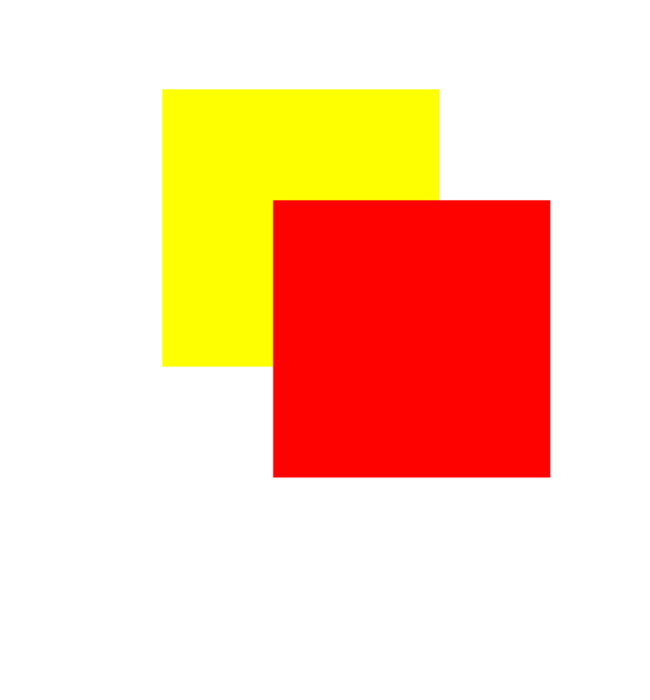
往窗口里添加两个自定义的view,这样每个view的hitTest方法被访问的时候我们就能log一下:

import UIKit

class ViewController: UIViewController {

    override func viewDidLoad() {
        super.viewDidLoad()

        let view1 = View1(frame: CGRect(x: 110, y: 110, width: 150, height: 150))
        let view2 = View2(frame: CGRect(x: 170, y: 170, width: 150, height: 150))
        view1.backgroundColor = .yellow
        view2.backgroundColor = .red

        self.view.addSubview(view1)
        self.view.addSubview(view2)
    }
}

class View1 : UIView {
    override func hitTest(_ point: CGPoint, with event: UIEvent?) -> UIView? {
        print("enter v1 \(point)")
        return super.hitTest(point, with: event)
    }
}

class View2 : UIView {
    override func hitTest(_ point: CGPoint, with event: UIEvent?) -> UIView? {
        print("enter v2, \(point)")
        return super.hitTest(point, with: event)
    }
}

运行:

image-20220219014246803

在空白处(bottom view)点了一下,输出:

enter v2, (-48.66007995605469, 306.0133361816406)
enter v1, (11.339920043945312, 366.0133361816406)
enter v2, (-48.66007995605469, 306.0133361816406)
enter v1, (11.339920043945312, 366.0133361816406)
enter v2, (-43.33333333333334, 325.3333333333333)
enter v1, (16.666666666666657, 385.3333333333333)
enter v2, (-43.33333333333334, 325.3333333333333)
enter v1, (16.666666666666657, 385.3333333333333)

在红框上(top view)点一下,输出:

enter v2, (38.66666666666666, 48.66666666666666)

在黄框(middle view)点一下,输出:

enter v2, (-31.210678100585938, -27.8685302734375)
enter v2, (-25.0, -22.333333333333343)
enter v1, (35.0, 37.66666666666666)
enter v2, (-25.0, -22.333333333333343)
enter v1, (35.0, 37.66666666666666)
  • 我们知道hitTest机制是事件传递链由底向上,响应链由上到下,
  • 所以最底层的bottom view最先接到事件就开始找响应者
  • 它开始从它的最顶层subview开始找响应者(v2),然后再往下(v1),均没找到,所以就是自己了
  • 为何调了四次呢?(未深究)
    Yes, it’s normal. The system may tweak the point being hit tested between the calls. Since hitTest should be a pure function with no side-effects, this should be fine.
  • 第二次测试,直接在最顶层view就找到了(所谓的找到,就是点击的位置在这个view的bounds内,后面说)
  • 至于为什么坐标会变?(未深究)
  • 第三次测试,点了v1,可以看到日志,在v2那里跑了3次,再跑了v1,不知道为什么还是没返回,还跑了一次v2后才认定v1

大体可以知道hitTest的机制了吧?以传递链的终点那个view为基础,在subviews逆向遍历(自顶向下),一直到自己。

应用1

来个简单场景,如果黄色的view是有触摸事件的,并且要求被覆盖的区域也能响应,该怎么做呢?

思考:

  • 我们知道点击的位置,肯定是在黄框范围内的,所以要的就是一个入口,用来判断这个点与黄框的关系,一旦确认点的范围是在黄框里,就把认为黄框是事件响应者。
  • 因此改下demo,加了事件,还加了一个parent view(这样才能在用属性的方式把黄框引用出来)
class ViewController: UIViewController {

    override func viewDidLoad() {
        super.viewDidLoad()


        let view1 = UIView(frame: CGRect(x: 110, y: 110, width: 150, height: 150))
        let view2 = UIView(frame: CGRect(x: 170, y: 170, width: 150, height: 150))
        view1.backgroundColor = .yellow
        view2.backgroundColor = .red

        let tap = UITapGestureRecognizer(target: self, action: #selector(tap(_:)))
        view1.addGestureRecognizer(tap)
        view1.isUserInteractionEnabled = true

        let view = View(a: view1, b: view2)
        self.view.addSubview(view)
    }

    @objc func tap(_ sender: UIGestureRecognizer) {
        print("view1 taped")
    }
}

class View: UIView {
    var view1: UIView
    var view2: UIView
    init(a: UIView, b: UIView) {
        self.view1 = a
        self.view2 = b
        super.init(frame: UIScreen.main.bounds)
        self.addSubview(a)
        self.addSubview(b)
    }
    required init?(coder: NSCoder) {
        fatalError("init(coder:) has not been implemented")
    }
    override func hitTest(_ point: CGPoint, with event: UIEvent?) -> UIView? {
      let loc_v1 = self.convert(point, to: self.view1)
          // 主要就是这一句
        if(self.view1.point(inside: loc_v1, with: event)) {
            return self.view1
        }
        return super.hitTest(point, with: event)
    }
}
  • let loc_v1 = self.convert(point, to: self.view1)意思是这个点以view1为坐标系的位置
  • if(self.view1.point(inside: loc_v1, with: event)) 这就是判断这个点在不在view1的bounds里面了

简单来说,就是简单粗暴地“逮住每一个机会”,问是不是你,是不是你。

应用2

如果一个按钮很小,你要扩大他的点击区域怎么做?网上有很多方法,关联属性啊,交换方法啊,可以去搜搜,我们这里继续上面的例子,知道有一个point(inside:with)方法,顾名思义,就是这个点在不在我的视图区域内

它当然也是可以被重写,自定义在什么样的范围内,都算inside,下面是网上抄的一段代码

- (BOOL)pointInside:(CGPoint)point withEvent:(UIEvent*)event {
   //获取当前button的实际大小
    CGRect bounds = self.bounds;
    //若原热区小于44x44,则放大热区,否则保持原大小不变
    CGFloat widthDelta = MAX(44.0 - bounds.size.width, 0);
    CGFloat heightDelta = MAX(44.0 - bounds.size.height, 0);
    //扩大bounds
    bounds = CGRectInset(bounds, -0.5 * widthDelta, -0.5 * heightDelta);
    //如果点击的点 在 新的bounds里,就返回YES
    return CGRectContainsPoint(bounds, point);
}

这个例子主要就是利用底层的CGRectContainsPoint方法,传入了新的bounds,可以理解为人为修改入参吧。代码也很明确了,自己根据当前的bounds合理做一个大一点的bounds,交给系统去做就行了。

Programming iOS 14 - Layer

《Programming iOS 14: Dive Deep into Views, View Controllers, and Frameworks》第3章


Layers

  • A UIView does not actually draw itself onto the screen; it draws itself into its layer, and it is the layer that is portrayed on the screen.
  • a view is not redrawn frequently;
  • instead, its drawing is cached, and the cached version of the drawing (the bitmap backing store) is used where possible.
  • The cached version is, in fact, the layer.
  • the view’s graphics context is actually the layer’s graphics context.
  • a layer is the recipient and presenter of a view’s drawing
  • Layers are made to be animated
  • View持有layer,是layer的代理(CALayerDeletgate
    • 但layer不能找到View
  • View的大部分属性都只是其underlying layer的便捷方法
  • layer能操控和改变view的表现,而无需ask the view to redraw itself

自定义underlaying layer的方法

class CompassView : UIView {
    override class var layerClass : AnyClass {
        return CompassLayer.self
    }
}

Layers and Sublayers

  • layer的继承树跟view的继承树几乎一致

  • layer的masksToBounds属性决定了能否显示sublayer超出了其bounds的部分,这也是view的clipsToBounds的平行属性

  • sublayers是可写的,而subviews不是

    • 所以设为nil可以移除所有子层,但subview却需要一个个removeFromSuperview
  • zPostion决定了层级(order),默认值都是0.0

  • a layer does not have a center靠positionanchorPoint定位

    • position: 在superLayer中的位置
    • anchorPoint: 用小数表示的bound(宽/高)位置,左上(0, 0), 右下(1, 1), default:(0.5, 0.5)
    • 所以(0.5, 0.5)的anchorPoint,对应的poosition就等同于center了,理解一下
      • 其实就是说你的“锚点”在superLayer的什么位置的意思
    • When you get the frame, it is calculated from the bounds size along with the position and anchorPoint.
      • When you set the frame, you set the bounds size and position
// demo, 把一个80x40的layer,左上角放到(130, 120的位置)
let layer = CALayer()
layer.bounds = CGRect.init(x: 0, y: 0, width: 80, height: 40)
layer.backgroundColor = UIColor.yellow.cgColor
layer.position = CGPoint.init(x: 130, y: 120)
layer.anchorPoint = CGPoint.init(x: 0, y: 0)

如果一个layer的position是(0, 0),锚点是(0,0),刚好显示在左上角 而(0.5,0.5)则只能显示右下角的1/4了 即(0.5, 0.5)到了原来(0,0)的位置。所以说其实就是把自身bounds度量下的哪个位置移到(0,0)

这么说来,对锚点的最正确理解其实是,

  • 我把自身坐标系里的哪个点定义为原点,
  • 并且,这个点移到原本“左上角”的位置(想象0.5,0.5)
  • 并且,所有的旋转之类的动画本来是对“左上角”的位置进行的,不管现在这个位置是layer上的哪个部分
    • 或者说,旋转永远是发生在position上的,你把哪个点放到position上它不管

理解frame的小练习

// 如果我设了layer的frame:
circle.frame = CGRect.init(x: 50, y: 50, width: 200, height: 200)

// 实际上是通过size, position, anchorPoint来实现的:
circle.bounds = CGRect(x: 0, y: 0, width: 200, height: 200)

// 以左上角为anchorPoint
circle.position = CGPoint(x:50, y:50)
circle.anchorPoint = CGPoint(x:0, y:0)
// 或者,以中心为anchorPoint
circle.position = CGPoint(x:150, y:150)
circle.anchorPoint = CGPoint(x:0.5, y:0.5)
// 或者其它任意anchorPoint,前提是自己换算
// 而且,虽然位置是一样的,但会影响transform

CAScrollLayer

  • 你想通过移动layer的bounds来重定位sublayers,可以使用CAScrollLayer
  • 但是它并不能通过拖拽来移动里面的内容(记得它没有响应链)
  • 而是理解为一个masksToBounds的窗口,你只能看到它bounds里面的内容
  • 能通过本身的scroll(to:)方法,和sublayers的scroll(_:)scrollRectToVisible(_:)方法来改变scroll layer的bounds,达到显示sublayer指定区域的目的

Layer and Delegate

  • 对一个不是UIView的undrelying layer的layer,让(任意)一个对象成为其delegate,可以由它来操控它的layout和drawing
  • 但千万不要让UIView成为不是其underlying的layer的代理,反之亦然

Layout of Lyaers

  • When a layer needs layout, either because its bounds have changed or because you called setNeedsLayout

Drawing in a Layer

  • set contents is the simplest way to draw in a layer -> CGImage
    • contents能接受任何类型,所以不正确的content只会fail silently
  • layer也有一个draw(_:)方法,它被(自动)调用的时候通常表示要redisplay itself`,什么时候需要redisplay itself?
    • 如果needsDisplayOnBoundsChange是false,那么就只有在sefNeedDisplay方法(及其inRect衍生方法)里会触发
      • 如果是非常重要的重绘,那么需要再显式调用一次displayIfNeeded
    • 是true的话就如其名,在bounds变化的时候也会重绘
  • 有四个方法能在redisplay的时候调用:
    1. subclass的display重载,它没有graphics context,所以只能提供图片
    2. delegate的display(in:)方法,同样,只能提供图片
    3. subclass的draw(in:)方法,有context,所以能直接在里面绘图,但不会make current context
    4. delegate的draw(_:in)方法,限制也同上
  • underlaying layer不应调用上面的方法,而交由view的draw(_:)方法
    • 一定要调也可以,但要显式实现view的draw(_:)方法,方法体为空就行了

Drawing-Related Layer Properties

  • contentsScale: 像素对高分屏的映射,Cocoa管理的layer会自动设置,自定义的类需要注意这个scale
  • opacity: 就是view的alpha
    • Changing the isOpaque property has no effect until the layer redisplays itself.

Content Resizing and Positioning

  • A layer’s content is stored (cached) as a bitmap which is then treated like an image:
    • 如果content来自一张图片,那么缓存的就是图片(CGImage),大小就是图片的point size
    • 如果来自绘图,那么存的是graphics context
  • ContentGravity,类似UIView’s contentMode property,即缩放拉伸
    • 因为坐标系不同的历史原因,top, bottom是相反的
    • 如果是自己绘制,则这个属性无意义,但结合下面的rect属性又有用了,因为截取了rect大小的绘制
  • contentsRect,结合上一个属性,做购物网站那种截取一小块,绘制到一个大图上去。这里是绘制到view上
    • 默认是全图(0,0,1,1)
  • contentsCenter ?? 好像是对上述rect属性划成9宫格,不同位置的格子缩放规则不一样,比如四个角落的格子,不会缩放
    • 所以给了一个center region(rect),把它的四条边延长,就有9个格子了

Layers that Draw Themselves

系统内置了一些能自我绘制的layer:

  • CATextLayer,轻量版的UILabel。通过string属性存取,与contenta会冲突,不要同时设。
  • CAShapeLayer, 有path属性,可以与contents共存,path绘制于content之上,并且不能设融合模式
  • CAGradientLayer,通过背景色做的渐变,去了解下clip和mask

Transforms

  • view的transform是根据其center来应用的,layer的是根据anchorPoint
    • 所以anchorPoint就两个作用,把它移动到position的位置,和以它为中心进行旋转
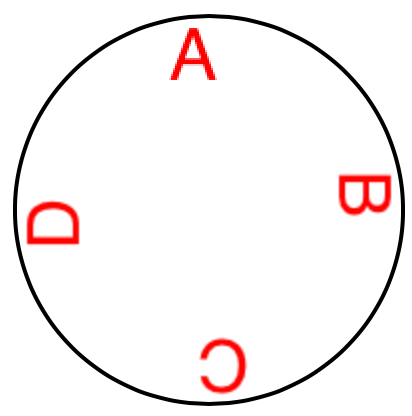
  1. 画刻度,核心是把文字先往上挪到圆圈的位置,所以anchorPoint只动y不动x (center, midY/textHeight)
let str = "ABCD"
for (i, s) in str.enumerated() {
    let t = CATextLayer()
    t.string = String(s)
    t.bounds = CGRect.init(x: 0, y: 0, width: 40, height: 40)
    t.position = circle.center // 这才是核心,一切定位和旋转的基准
    let vert = circle.bounds.midY/t.bounds.height
    t.anchorPoint = CGPoint.init(x: 0.5, y: vert) // 半圆是文字调蓄的多少倍,就上移多少,但隐形的脚(即高跷的支点)仍在position处
    t.foregroundColor = UIColor.red.cgColor

    t.setAffineTransform(CGAffineTransform(rotationAngle: .pi/2.0 * CGFloat(i)))
    circle.addSublayer(t)
}

结果如图:

  1. 画箭头,演示了复杂的绘制怎么把它代理出去,并且什么时机让它产生绘制:
// the arrow
let arrow = CALayer()
arrow.contentsScale = UIScreen.main.scale
arrow.bounds = CGRect(0, 0, 40, 100)
arrow.position = self.bounds.center
arrow.anchorPoint = CGPoint(0.5, 0.8) // 箭尾凹进去的位置(所以不可能是1.0)
arrow.delegate = self // we will draw the arrow in the delegate method
arrow.setAffineTransform(CGAffineTransform(rotationAngle:.pi/5.0))
self.addSublayer(arrow)
arrow.setNeedsDisplay() // draw, please

** 3D Transforms

  • A layer’s affineTransform is merely a façade for accessing its transform.
  • A layer’s transform is a three-dimensional transform, a CATransform3D

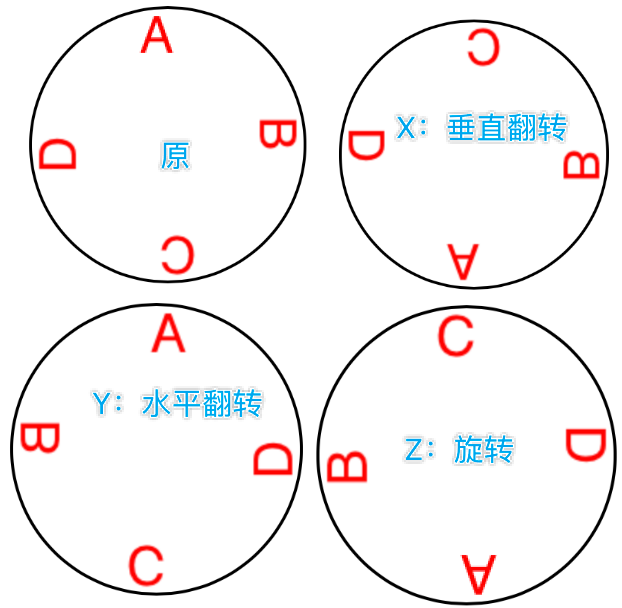
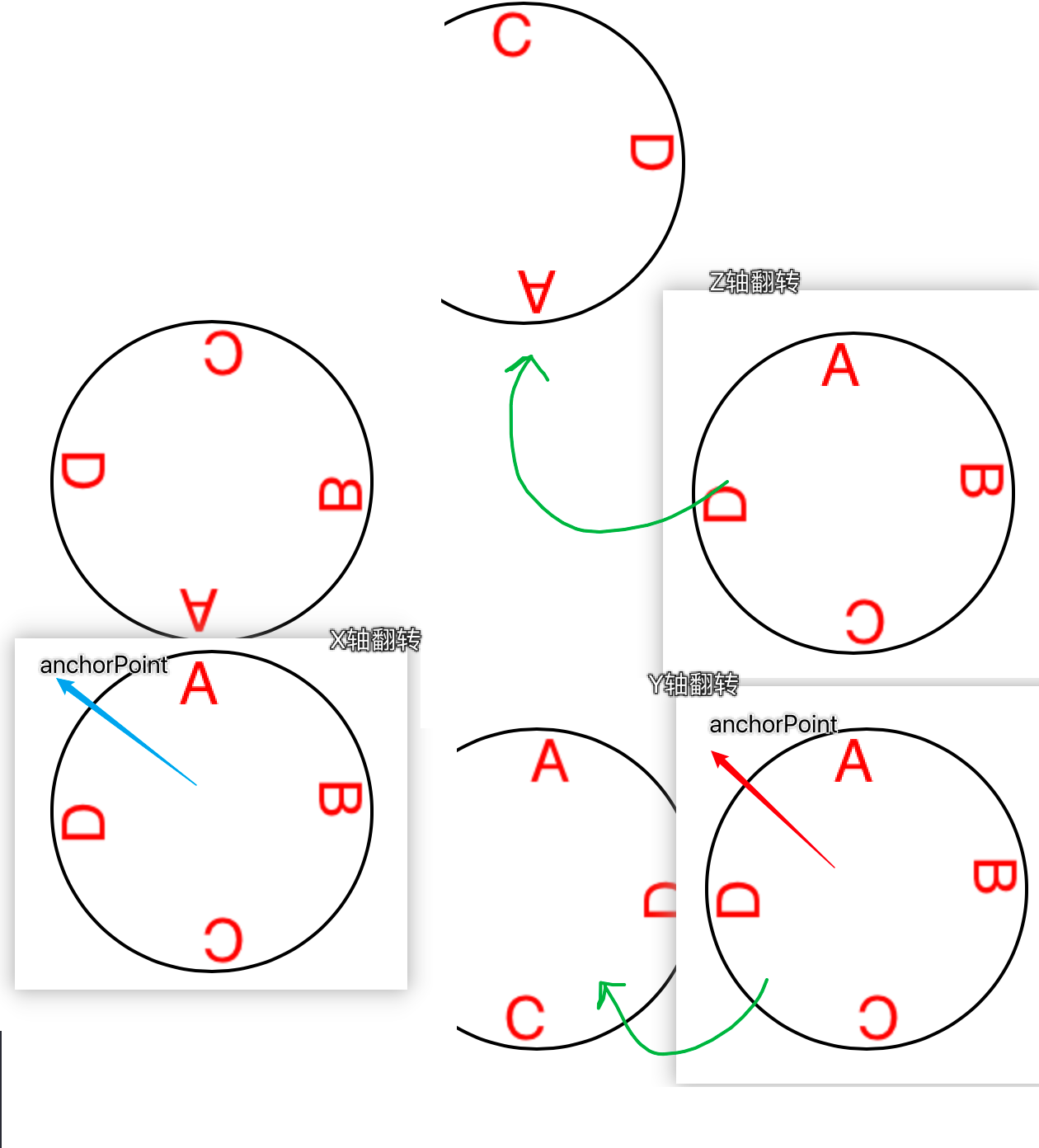
绕Y轴镜像的示例:

someLayer.transform = CATransform3DMakeRotation(.pi, 0, 1, 0)

一般而言,在Z轴没有分量的平面图,那就只剩旋转的效果了(没有翻转)

这是把anchorPoint设在了圆心,如果设在(0,0):

  • layer不是为了3D建模而诞生的(考虑Metal),它是2D对象,为speedsimplicity而设计

depth

现实世界z-component的加入会近大远小,layer绘制没有表现出这种距离,而是压平到一个面:orthographic projection,但是使用了一些技巧来制造这种视觉效果。

[waiting for demo]

Futher Layer Features

shadows

  • The shadow is normally based on the shape of the layer’s nontransparent region
    • 所以完全透明的视图是没有阴影的
  • clip和shadow是不可能同时存在的,技巧是用另一个view叠到底层,让它实现阴影。

Borders and Rounded Corners

  • 想要圆角,就必须用masksToBounds来实现clip,同时还要阴影的话,又得借助上图的技巧了。
  • 从iOS 11起,可以单独设置圆角了:maskedCorners,它由minx, miny, maxx, maxy这种风格的描述进行组合,而不是我们期望的top-left之类的。

Masks

  • A CALayer can have a mask. This is itself a layer, whose content must be provided somehow.
  • 只有透明部分有作用
    • 透明的位置,对应的layer位置也是透明的
    • 反过来想不透明的部分,还是被应用mask的layer能显示的部分
    • 这就是photoshop里图层蒙板”涂黑就是显示“的意思
  • there is no built-in mechanism for automatically resizing the mask as the layer is resized.
  • 把一个view当作另一个view的mask属性,底层就是相应的layer

下例用mask来制作自己的圆角矩形,注意里面context和path的关系。在context里面,新建的path都是能直接绘制的,而不需要这个path设为谁的属性(drawRect:方法里也是一样,只要新建path,再自行去stoke, fill都行,

而context上也可以直接绘制

func mask(size sz:CGSize, roundingCorners rad:CGFloat) -> CALayer {
    let rect = CGRect(origin:.zero, size:sz)
    let r = UIGraphicsImageRenderer(bounds:rect)
    let im = r.image { ctx in
        // context绘制
        let con = ctx.cgContext
        con.setFillColor(UIColor(white:0, alpha:0).cgColor)
        con.fill(rect)
        con.setFillColor(UIColor(white:0, alpha:1).cgColor)
        // path绘制
        let p = UIBezierPath(roundedRect:rect, cornerRadius:rad)
        p.fill()
    }
    let mask = CALayer()
    mask.frame = rect
    mask.contents = im.cgImage
    return mask
}

Layer Efficiency

由于移动设备算力的影响,大量叠加的半透明图层的渲染是一件很消耗且低效的事,特别是动画的时候。

debug:

  1. Core Animation template in Instruments
  2. New in Xcode 12, animation “hitches” can be measured with XCTMetrics during performance testing.
  3. the Simulator’s Debug menu lets you summon colored overlays that provide clues as to possible sources of inefficient drawing
    • 真机:Debug → View Debugging → Rendering
  4. New in Xcode 12, the view debugger (“View Debugger” on page 75) can display layers — choose Editor → Show Layers — and can offer suggestions for improving layer rendering efficiency.

tips:

  1. opaque drawing is most efficient.
    • Nonopaque drawing is what the Simulator marks when you check Debug → Color Blended Layers.
  2. “freezing” the entirety of the layer’s drawing as a bitmap.
    • 直接绘制效率确实比缓存效率高
    • 但是过深过复杂的继承树,没必要每次都实时计算渲染
    • by shouldRasterize = true and rasterizationScale = UIScreen.main.scale
  3. drawsAsynchronously = true

Layers and Key-Value Coding

layer.mask = mask
// or:
layer.setValue(mask, forKey: "mask")

self.rotationLayer.transform = CATransform3DMakeRotation(.pi/4.0, 0, 1, 0)
// or:
self.rotationLayer.setValue(.pi/4.0, forKeyPath:"transform.rotation.y")
  • 不代表CATransform3Drotation属性

    • 它没有任何属性
    • 它甚至不是一个对象
    • self.rotationLayer.transform.rotation.y = //... no, sorry
  • some transform key:

• "rotation.x","rotation.y","rotation.z" • "rotation" (same as "rotation.z") • "scale.x","scale.y","scale.z" • "translation.x","translation.y","translation.z" • "translation" (two-dimensional, a CGSize)

  • TheQuartz Core framework also injects key–value coding compliance into CGPoint, CGSize, and CGRect, allowing you to use keys and key paths matching their struct component names.

see “Core Animation Extensions to Key-Value Coding” in Apple’s Core Animation Programming Guide

  • you can treat a CALayer as a kind of dictionary, and get and set the value for any key.
    • view有tag,layer就有任意key

《Effective Objective-C 2.0》笔记第1-2章

这个书当然中文版的,也很经典,我也读过了,但是嘛,老规矩,有原版还是读一遍原版,再加上英文水平也只有那么好,有机会能多读读在就多读读吧。一共就7章,52节,200多页,并不多。 此外,因为很多名词其实我们平时直接叫的就是英文,中文版里统统都给了一个中文翻译,反而更陌生了,有种“访达”的即视感。

Chapter 1: Accustoming Yourself to Objective-C

Item 1: Familiarize Yourself with Objective-C’s Roots

  1. messaging structure v.s. function callihng
    • in messaging structure, the runtime decides which code gets executed, while in function, the compiler decides.
    • dynamic binding v.s. virtual table <= 多态
  2. runtime component v.s. compiler
    • 含有所有让面向对象的OC能工作的 data structures and functions
      • 比如,含有所有的memory-management methods
    • 更新runtime component就能提升性能,而无需重新编译
  3. Objective-C is a superset of C
    • 所以语法基本类似:NSString *str = @"The String
    • 表示声明了一个变量,类型是NSString *,是一个指向NSString的指针
    • 所有OC对象必须如此声明,对象内存也总是分配在heap space上
      • 这是分配到stack上:NSString stackString <- 报错
    • 但指向这个对象的指针(pointer)是分配在stack frame里的,多个指向同一对象的指针就分配了多个内存
      • 每个内存大小就是一枚指针的大小
      • 值也是一样
  4. The memory allocated in the heap has to be managed directly
    • OC将堆内存管理抽象了出来,runtime进一步抽象成一套内存管理架构:reference counting
  5. 整个系统框架都要使用结构体,用对象会有额外的开销

Item 2: Minimize Importing Headers in Headers

Objective-C, just like C and C++, makes use of header files and implementation files.

  1. forward declaring -> @class SomeClass
    • 头文件里并不知道知道一些类的实现细节,只需要知道有这么一个类就行了
    • 但是.m文件里就要自行去import一次这个class了
    • 原则就是尽量延后引入头文件的时机,减少编译时间
    • 还解决了互相引用的问题
    • 引用super class, protocol等必须要知道细节,不能应用forward declaring
      • 所以最好把protocol单独放在一个头文件,避免无谓地引用大文件,增加编译时间
      • 但是delegate放到class-continuation category里面写更好(即在.m文件里写protocol和import),无需暴露到公共头文件
    • 关键词:减小依赖缩减编译时间

Item 3: Prefer Literal Syntax over the Equivalent Methods

  • 尽量使用字面量语法(Literal Syntax)创建和使用对象
  • 字面量语法只是一个语法糖(syntactic sugar),推荐使用字面量,会减少代码量,但最好知道它对应的原始方法。(但是还是会有所区别,看下例)
  • 用字面量初始数组,如果不是最后一个元素是nil,会报错,而原始的arrayWithObjects:方法则会在碰到第一个nil时当成是终止参数而正常执行(只保留nil前的元素初始化数组)
    • 作者说这反而是好事,未预料到的情况成功执行比报错更可怕,抛异常能更早地发现错误
  • 只能创建Foundation框架的对象,自定义对象不行(一般也没必要)
  • 使用字面量语法创建出来的String, Array, Dict等都immutable

Item 4: Prefer Typed Constants to Preprocessor #define

  • #define本质是替换
  • #define出来的是没有类型信息的
  • 如果是声明在头文件中,引用了此头文件的代码都会应用此替换
    • 即使被重定义了,编译器也不会产生警告
  • 而常量就带了类型信息
    • static NSString * const MyStringConstants = "Hello world;
    • 注意星号的位置,这里表示指针指向的是整个常量
    • 如果把星号写到const后,那表示指针就是那个常量...
  • 定义常量的位置很重要(预处理指令也一样),不打算公开的话就在.m文件里定义
  • 命令也很重要
  • 否则成了全局变量,很可能”不经意“引起变量冲突/覆盖
  • static const要一起使用,单独的const会报错
    • static不再是别的语言中的静态变量,而保是一个作用域声明
    • 一个编译单元(translation unit)个输出一个目标文件(object file
      • 考虑你编译一个c++文件,一个文件生成一个目标(二进制)文件,然后再链接。
      • 所以一个编译单元一般是一个.m文件
    • 结合起来,static就是在一个目标文件内可见
    • 如果不加static,编译器会添加一个external symbol(后面有详述),这样就有重定义风险了(duplicate symbol
  • 最后,事实上static const一起用,编译器做的仍然是替换,而没有去创建符号(但此时已经有类型信息了)

*如果需要公开,则添加到全局符号表(global symbol table)中:

// In the header file
extern NSString *const EOCStringConstant;

// In the implementation file
NSString *const EOCStringConstant = @"VALUE";
  • 上面解释了static,现在来解释extern
    • extern表示向编译器保证全局符号表中将会有这个符号,其实就是要编译器不要继续检查
    • 它知道链接成二进制文件后,肯定能找到这个常量
  • 所以在.m文件里正常定义和赋值,在任意.h文件时给编译器打个招呼就行了
  • 命名规范:
    • 如果是限定可见域的,用k开头就行了
    • 如果会公开的,那么就用函数名作前缀(系统框架都是这么做的)

external symbol V.S. global symbol

前文你已经知道了两种提升作用域的方式,区别在

  • 一个是通过不对const加static(添加external symbol),
  • 一个是额外声明extern(添加到blobal symbol talbe)

Item 5: Use Enumerations for States, Options, and Status Codes

  • 枚举只是一种常量命名方式
  • 语法很奇葩:enum EOCConnectionState state = EOCConnectionStateDisconnected;
    • 看高亮的部分,别人只要写一个type,它要连enum带名称写全
  • 所以一般会typedef一下:typedef enum EOCConnectionState EOCConnectionState;
    • 现在就可以用EOCConnectionState这个type来定义变量了
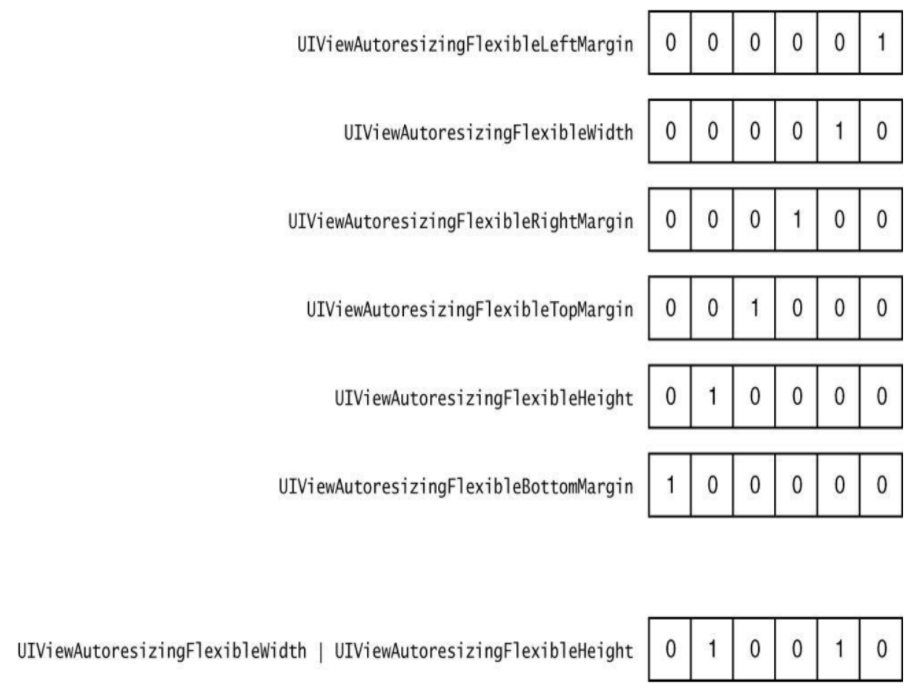
  • 用enum来做选项(options)的时候,因为不是互斥的关系,选择bitwise OR operator来会直观很多(就是每一个二进制位代表一个状态)
enum UIViewAutoresizing { 
    UIViewAutoresizingNone = 0, 
    UIViewAutoresizingFlexibleLeftMargin = 1 << 0, 
    UIViewAutoresizingFlexibleWidth = 1 << 1, 
    UIViewAutoresizingFlexibleRightMargin = 1 << 2, 
    UIViewAutoresizingFlexibleTopMargin = 1 << 3, 
    UIViewAutoresizingFlexibleHeight = 1 << 4, 
    UIViewAutoresizingFlexibleBottomMargin = 1 << 5,
}
  • Foundation框架定义了一些辅助宏,以便支持新的C++标准对宏定义的增强同时还能兼容老的标准: NS_ENUMNS_OPTIONS
    • 特别是c++对枚举值里的bitwise操作结果需要显式转换
    • 所以用到了可组合的option类的枚举,最好用NS_OPTIONS宏,否则用NS_ENUM就够了
  • 对enum应用switch最好不要加default,这样你添加了新的枚举值而忘记了处理,能及时得到错误反馈

Chapter 2: Objects, Messaging, and the Runtime

Item 6: Understand Properties

  • Properties are an Objective-C feature providing encapsulation of the data an object contains.
    • stored by instance variables
    • accessed through accessor methods (getter, setter)
      • can be written by complier automatically <= autosynthesis
      • introduced a dot syntax to accessing the data

看一下C++写法:

@interface EOCPerson : NSObject { 
@public
    NSString *_firstName;
    NSString *_lastName; 
@private
    NSString *_someInternalData; 
}
@end
  • 对象布局在编译期就确定了,所以就硬编码了每个属性在对象内存中的偏移量
  • 所以如果对象布局变化了(比如增加了实例变量),这些偏移量就会出错,必须要重新编译。
    • 如果链接代码时使用了不同版本的类定义,就会产生这种“不兼容”的问题
  • OC的解决方案是,把偏移量仍由“实例变量”存储
    • 但是交由“类对象“(class object)保管
    • 偏移量在运行期查找 -> 类的定义变了,偏移量也就变了(实时的)
      • 甚至可以在运行期向类中新增实例变量
      • nonfragile Application Binary Interface(ABI)
      • 这样就可以不止在声明文件里定义实例变量,还可以在class-continuation和实现文件里面定义了
    • 尽量不要直接访问实例变量
  • 使用点语法访问属性
    • 编译器会转换为对存取方法的调用
    • 编译器会为属性生成相应的实例变量,并自动合成(生成相应的存取方法)
      • 编译期进行,所以你看不到实际的代码
      • 也可以手写同样的代码(这时你就可以自定义实例方法的签名了)
      • @dynamic能阻止合成 <= 相信运行期能找到

Property Attributes

  1. 原子性(Atomicity),读写的时候加锁
  2. 读/写权限
  3. 内存管理语义
    • assign: on scalar type
    • strong: 拥有关系,设置新值流程:retain new -> release old -> set new
    • weak: 非拥有关系
    • unsafe_unretained: 类似assign,但适用于对象类型(而不只有scalar type)
      • 与weak的区别在目标对象在销毁时,该属性值不会自动清空
    • copy: 类似strong,但是相比起retain,它直接是复制了一份,通常用于拥有可变类型的变量,比如NSString *,可变版的string也能赋值给NSString,这就会引起赋值后值还自己变了的可能性
  4. 方法名
    • getter=,需要注意的是有些bool类型的通常会设置为isXXXX
    • setter=,但很少这么做

如果自己来实现accessor methods,那么就要自己去保证这些方法符合这些attributes,比如内存管理语义为copy,那么在设置的时候就要拷贝传入的值:

@interface EOCPerson : NSManagedObject 
@property (copy) NSString *firstName;
@property (copy) NSString *lastName;
- (id)initWithFirstName:(NSString*)firstName lastName:(NSString*)lastName;
@end

// 实现文件:
- (id)initWithFirstName:(NSString*)firstName lastName:(NSString*)lastName
{
    if ((self = [super init])) {
        _firstName = [firstName copy];
        _lastName = [lastName copy]; }
        return self; 
    }
  • 读写操作的原子性并不是线程安全
  • iOS中使用同步锁开销较大
  • 实际iOS程序碰到多线程读写属性的场景也非常少
  • 所以基本上都是声明为nonatomic

Item 7: Access Instance Variables Primarily Directly When Accessing Them Internally

在对象内部优先访问实例变量。

直接访问而不用点语法的影响:

  • 不经过消息派发,速度快(编译器生成的代码会直接访问相应的内存)
  • 不会调用setter,也绕过了相应的内存管理语义
  • 不会触发KVO
  • 没有机会在getter, setter中设置断点来调试
  • 没有机会lazy intialization,而getter机制能在首次被调用到的时候才去初始化实例变量
  • 初始化和dealloc的时候总是要直接用实例变量

作者建议尽量在读取实例变量的时候直接访问,设置的时候用属性(会自动考虑内存管理语义)

Item 8: Understand Object Equality

其实就是理解NSObject自带的isEqual:方法。

  • ==就是比指针
  • isEqual:比的是hash,所以自定义的类要实现equality就要自行实现这两个方法
    • hash不同必然对象不同,但由于有hash collisions的存在,反过来并不成立
    • 尽量用对象的不可变部分来做hash

一个做hash的方法:

- (NSUInteger)hash {
    NSUInteger firstNameHash = [_firstName hash]; 
    NSUInteger lastNameHash = [_lastName hash]; 
    NSUInteger ageHash = _age;
    return firstNameHash ^ lastNameHash ^ ageHash;
}

Item 9: Use the Class Cluster Pattern to Hide Implementation Detail

+ (UIButton*)buttonWithType:(UIButtonType)type;
  • 作者将上述这种解释为“类族”,即它的返回值可能是各种button,但归根结底,都是UIButton,就是靠着switch各种type来实例化各种子类。
  • 同时,因为OC没有abstract class,为了避免直接使用抽象基类,一般不提供init方法,并在基类相关方法里干脆抛异常
  • 这里使用isMemberOfClass就要小心,它是kind,但不一定是member
  • 系统框架里有很多class cluster,特别是collection
    • 所以if([anArray class] == [NSArray class])是false(原因就是它是被当作“抽象基类来设计的,实际上是隐藏在公共接口后面的某个内部类型)
    • 同样,用isKindOfClass:至少能判断是在这个类族里

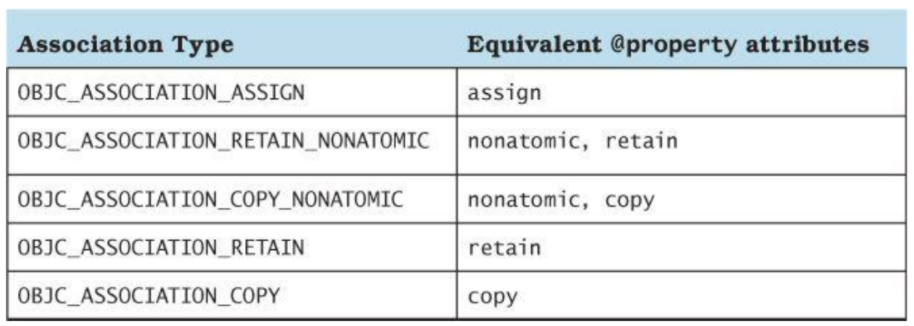
Item 10: Use Associated Objects to Attach Custom Data to Existing Classes

扩展现有类,我们可以继承,但有时候一些特殊机制创建的类却无法继承,可以通过Associated Object来添加这些信息。

  • 以键值对来存储,所以是可以存储多个关联数据的
  • 可以指定storage policy,对应内存管理语义

方法:

// Sets up an association of object to value with the given key and policy.
void objc_setAssociatedObject(id object, void *key, id value, objc_AssociationPolicy policy)

// Retrieves the value for the association on object with the given key.
id objc_getAssociatedObject(id object, void *key)

// Removes all associations against object.
void objc_removeAssociatedObjects(id object)

书中写了一个例子,alertView的代理方法来处理按了什么键,而一个页面中如果有多个alertView,且用同一个代理对象,那么处理需要更精细(比如需要知道是哪个警告框弹的,我一般用tag)。 而如果把处理方法定义为一个block,并把它关联到UIAlertView类,那么处理逻辑就可以跟定义alertView写在一起了。

todo, item 11-14

Programming iOS 14 - Drawing

《Programming iOS 14: Dive Deep into Views, View Controllers, and Frameworks》第2章


Drawing

Many UIView subclasses, such as a UIButton or a UILabel, know how to draw themselves.

A pure UIView is all about drawing, and it leaves that drawing largely up to you.

Images and Image Views

图片可以来自文件,代码,或网络。

Image Files

  • init(named:),会从Asset catalogApp bundle的顶层去查找
    • 返回的是一个Optional,因为不能确定这个路径对应一张图片,或能解码成功
    • 它会将图片缓存
      • init(contentsOfFile:)则不会缓存,但不从asset catalog加载而是相对于Bundle.main来做路径
  • 从bundle里找时不加扩展名会默认为png
  • 直接将图片拖到代码生成的不是Optional的image,调用的是init(imageLiteralResourceName:)方法
  • 文件名里的@表示High-resolution variants,即不同分辨率下采用的图片,比如@2x
  • 文件名里的~表示Device type variants,即不同设备类型下采用的图片,比如~ipad

尽量把图片放到asset catalog里,对不同的处理器,更宽的色域,等等 不光影响运行时,在Apple Store对你的app对特定设备进行thinning都会用到 不同size class, dark mode, ipad等等trait collection都可以设置对应的图片

Vector images

  • An image file in the asset catalog can be a vector-based PDF or (new in Xcode 12) an SVG.
  • init(systemName:) -> SF Symbols
    • .withConfiguration(_:) or .applyingSymbolConfiguration(_:) 进行自定义,参数是一个UIImage.SymbolConfiguration
    • Configurations can involve one of nine weights, one of three scales, a font or text style, and a point size, in various combinations

Asset catalogs and trait collections

指定trait collection初始化图片:init(named:in:compatibleWith:)

  • A built-in interface object that displays an image, such as a UIImageView, is automatically trait collection–aware;
  • it receives the traitCollectionDidChange(_:) message and responds accordingly.
let tcreg = UITraitCollection(verticalSizeClass: .regular)
let tccom = UITraitCollection(verticalSizeClass: .compact)
let moods = UIImageAsset()
let frowney = UIImage(named:"frowney")!
let smiley = UIImage(named:"smiley")!
moods.register(frowney, with: tcreg)
moods.register(smiley, with: tccom)

由此也可见,你操作的是“一张图片”,其实它是一带了条件的图片。

UIColor也是相同的机制,你用resolvedColor(with:)传入trait collection把对应的颜色取出来使用。

Namespacing image files

  • 物理文件夹,虚拟文件夹内的图片访问时,都需要加上文件夹名(namespaing)
  • init(named:)的完全形态其实是init(named:in:),第二个参数是bundle,比如来自某个framework.

Image Views

A UIImageView can actually have two images, one assigned to its image property and the other assigned to its highlightedImage property A UIImageView without an image and without a background color is invisible

Resizable Images

用inset来设置拉伸的区域,比如一般我们碰到的多为左右随便拉伸的胶囊按钮,需要设计师做的就是左右两个半圆(不拉伸)和中间1像素的可拉伸部分

let marsTiled = mars.resizableImage(withCapInsets:
UIEdgeInsets(
    top: mars.size.height / 2.0 - 1,
    left: mars.size.width / 2.0 - 1,
    bottom: mars.size.height / 2.0 - 1,
    right: mars.size.width / 2.0 - 1
), resizingMode: .stretch)

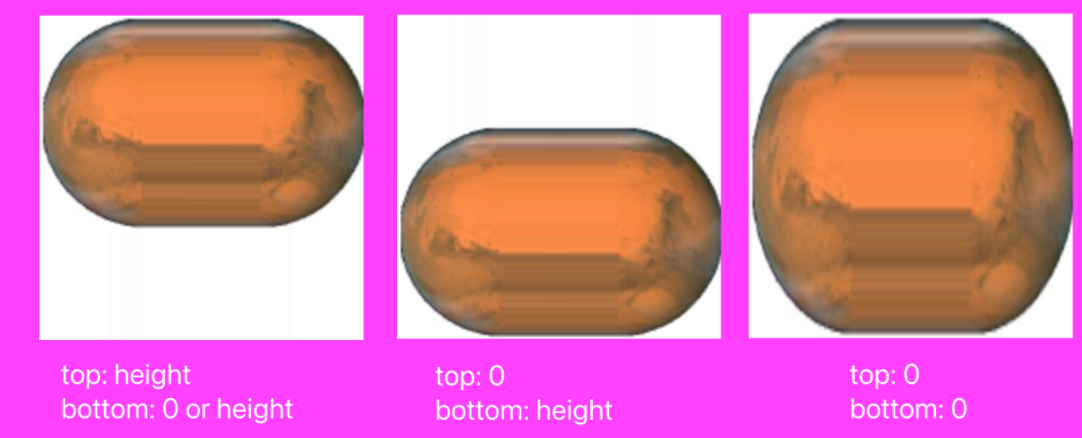
所以如果只是横向拉伸,上面的代码中,top, bottom都可以设为0,或都设为图片高度(而不去除2什么的),只需要保证把UI控件的高度保持跟图片一致即可。

那么,如果不小心高度大于图片高度了呢?分两种情况,如果设了0,表示没有保留区域,直接竖向拉伸,而如果设成了图片高度,那么表示整个Y方向没有可供拉伸的像素,必然造成拉伸失败:

Transparency Masks

The image shown on the screen is formed by combining the image’s transparency values with a single tint color.

忽略图片各像素上颜色的数值,只保留透明度,就成了一个mask. (renderingMode: alwaysTemplate)

  • iOS gives every UIView a tintColor, which will be used to tint any template images。所以我们经常用的tintColor其实就是给模板图片染色的意思。
  • tintColor是向下继承的
  • The symbol images are always template images
  • iOS 13起,可以对UIImage直接应用tint color

Reversible Images

  • imageFlippedForRightToLeftLayoutDirection来创建一个在从右向左的书写系统里会自动翻转的图片。
    • 但你又可以设置semanticContentAttribute来阻止这个镜像行为
  • 如果不考虑书写系统,可以用withHorizontallyFlippedOrientation强行镜像

Graphics Contexts

Graphics Contexts是绘图的起点,你能从如下方式得到Graphics Contexts:

  1. 进入UIView的 draw(_:)方法时,系统会给你提供一个Graphics Contexts
  2. CALayer的draw(in:),或其代理的draw(_:in:)方法,in参数就是Graphics Contexts
    • 但它不是currnet context
  3. 手动创建一个

UIKit 和 Core Graphics是两套绘制工具。

  • UIKit是大多数情况下你的选择,大部分Cocoa class知道如何绘制自己
  • 只能在current context上绘制
  • Core Graphics is the full drawing API, often referred to as Quartz (2D)
  • UIKit drawing is built on top of it.

两套体系,三种context来源,共计6种殊途同归的方式。

Drawing on Demand

直接上代码:

// UIView

// UIKit
override func draw(_ rect: CGRect) {
    // 直接绘制
    let p = UIBezierPath(ovalIn: CGRect(0,0,100,100))
    UIColor.blue.setFill()
    p.fill()
}

// CG
override func draw(_ rect: CGRect) {
    // 取到context
    let con = UIGraphicsGetCurrentContext()!
    con.addEllipse(in:CGRect(0,0,100,100))
    con.setFillColor(UIColor.blue.cgColor)
    con.fillPath()
}

// CALayer

// UIKit
 override func draw(_ layer: CALayer, in con: CGContext) {
    UIGraphicsPushContext(con)
    let p = UIBezierPath(ovalIn: CGRect(0,0,100,100))
    UIColor.blue.setFill()
p.fill()
    UIGraphicsPopContext()
}

// CG
override func draw(_ layer: CALayer, in con: CGContext) {
    con.addEllipse(in:CGRect(0,0,100,100))
    con.setFillColor(UIColor.blue.cgColor)
    con.fillPath()
}

Drawing a UIImage

let r = UIGraphicsImageRenderer(size:CGSize(100,100))
let im = r.image { _ in
    let p = UIBezierPath(ovalIn: CGRect(0,0,100,100))
    UIColor.blue.setFill()
    p.fill()
}
// im is the blue circle image, do something with it here ...
And heres the same thing using Core Graphics:
let r = UIGraphicsImageRenderer(size:CGSize(100,100))
let im = r.image { _ in
    let con = UIGraphicsGetCurrentContext()!
    con.addEllipse(in:CGRect(0,0,100,100))
    con.setFillColor(UIColor.blue.cgColor)
    con.fillPath()
}
// im is the blue circle image, do something with it here ...

UIImage Drawing

用已有的图像进行绘制:

let mars = UIImage(named:"Mars")!
let sz = mars.size
let r = UIGraphicsImageRenderer(size:CGSize(sz.width*2, sz.height),
    format:mars.imageRendererFormat)
let im = r.image { _ in
    mars.draw(at:CGPoint(0,0))
    mars.draw(at:CGPoint(sz.width,0))
}

这里,绘制了两个火星,注意imageRendererFormat的使用

CGImage Drawing

let mars = UIImage(named:"Mars")!
// extract each half as CGImage
let marsCG = mars.cgImage!
let sz = mars.size
let marsLeft = marsCG.cropping(to:
    CGRect(0,0,sz.width/2.0,sz.height))!
let marsRight = marsCG.cropping(to:
    CGRect(sz.width/2.0,0,sz.width/2.0,sz.height))!
let r = UIGraphicsImageRenderer(size: CGSize(sz.width*1.5, sz.height),
    format:mars.imageRendererFormat)
let im = r.image { ctx in
    let con = ctx.cgContext
    con.draw(marsLeft, in:
        CGRect(0,0,sz.width/2.0,sz.height))
    con.draw(marsRight, in:
        CGRect(sz.width,0,sz.width/2.0,sz.height))
}

当然, con.draw可以由UIImage来完成:

UIImage(cgImage: marsLeft!,
scale: mars.scale,
orientation: mars.imageOrientation).draw(at:CGPoint(0,0))

Snapshots

  • drawHierarchy(in:afterScreenUpdates:)将整个视图存成一张图片。
  • 更快,语义更好的方法:.snapshotView(afterScreenUpdates:) -> 输出是UIView,不是UIImage
  • resizableSnapshotView(from:after- ScreenUpdates:withCapInsets:)生成可缩放的

Core Image

The “CI” in CIFilter and CIImage stands for Core Image, a technology for transforming images through mathematical filters. (iOS 5起,从macOS引入)

用途:

  • patterns and gradients (可以被别的filter一起使用)
  • compositing (使用composting blend modes)
  • color (颜色调整,亮度锐度色温等等)
  • geometric (几何相关的就是用来变形)
  • transformation (distort, blur, stylize an image)
  • transition (一般用于动画,通过设置frame序列)

There are more than 200 available CIFilters, A CIFilter is a set of instructions for generating a CIImage

  • 基本上,处理的都是CIImage(input)
  • 输出也是CIImage,或者另一个filter -> 链式调用
    • 最后一层链可以自行转换为bitmap: cg或ui image(by rendering方法)
    • rendering的时候,所有的数学计算才开始发生
    • 因为只是instructions
  • 关键词:filter是用来描述怎么生成CIImage的
  • CGImageUIImage都能得到CIImage

UIImage只有在已经wraps了一个CIImage的情况下.ciImage才有值,而大多数情况下是没有的。

Core Image Filter Reference里有所有的filter的名字,用来初始化一个filter

let filter = CIFilter(name: "CICheckerboardGenerator")!
// or:
let filter = CIFilter.checkerboardGenerator()

// 用key-value来决定行为:
filter.setValue(30, forKey: "inputWidth")
// or:
filter.width = 30
// or init with params
init(name:parameters:)

// apply filter on CIImage(if exists one)
ciimage.applyingFilter(_:parameters:)
// or output a ciimage
filter.outputImage

Render a CIImage CIImage 不是一个displayaable image

  • CIContext.init(options:).createCGImage(_:from)
    • 参数1是CIImage,
    • 参数2是绘制区域(所以没有frame/bounds),叫extent
    • 这是很昂贵的操作,建议在全app生命周期保留这个context复用
  • UIImage.init(ciImage:)
  • 把上一次的uiimage设置成UIImageView的image,也能造成CIImage的渲染。

以上说的都是"render" CIImage的时机,所以传入的

Metal能快速渲染CIImage

串起一个demo:

let moi = UIImage(named:"Moi")!
let moici = CIImage(image:moi)!
let moiextent = moici.extent
let smaller = min(moiextent.width, moiextent.height)
let larger = max(moiextent.width, moiextent.height)
// first filter
let grad = CIFilter.radialGradient()
grad.center = moiextent.center
grad.radius0 = Float(smaller)/2.0 * 0.7
grad.radius1 = Float(larger)/2.0
let gradimage = grad.outputImage!
// 到此步为止,并没有moi这个图片参与,等于是一个纯filter

// second filter
let blend = CIFilter.blendWithMask()
blend.inputImage = moici  // 设置了image
blend.maskImage = gradimage // 这里演示的是mask filter,按我理解并不是链式的,而且语法上也不是链式的,而是赋值给了maskImage,但书里直接说是链式的
let blendimage = blend.outputImage!

// 两种render方法
// content
let moicg = self.context.createCGImage(blendimage, from: moiextent)! // *
self.iv.image = UIImage(cgImage: moicg)

// UIImage
let r = UIGraphicsImageRenderer(size:moiextent.size)
self.iv.image = r.image { _ in
    UIImage(ciImage: blendimage).draw(in:moiextent) // *
}

关于上述代码里我的疑惑,第一个filter并不是chain到第二个filter里的,但书里说是obtain the final CIImage in the chain (blendimage),看来所谓的chain,并不是fitler的chain,而是outputImage`的chain? 问题是,这是唯一且标准的filter嵌套用法么?-> mask

不是的

  1. 对filter的outputImage继续应用aplyingFilter(_:parameters)来链式应用一个新的filter
    • 返回值是CIImage,不再是filter
    • 所以如果继续chain,直接用返回值调apply...方法即可
  2. 把上一个filter的outputImage设为下一个filter的inputImage:
CIFilter *gloom = [CIFilter filterWithName:@"CIGloom"];
[gloom setDefaults];                                        
[gloom setValue: result forKey: kCIInputImageKey];
[gloom setValue: @25.0f forKey: kCIInputRadiusKey];         
[gloom setValue: @0.75f forKey: kCIInputIntensityKey];      
// 即outputImage
CIImage *result = [gloom valueForKey: kCIOutputImageKey];   

CIFilter *bumpDistortion = [CIFilter filterWithName:@"CIBumpDistortion"];
[bumpDistortion setDefaults];                                              
// 设置inputImage (with first filter's output image) 
[bumpDistortion setValue: result forKey: kCIInputImageKey];
[bumpDistortion setValue: [CIVector vectorWithX:200 Y:150]
                forKey: kCIInputCenterKey];                              
[bumpDistortion setValue: @100.0f forKey: kCIInputRadiusKey];                
[bumpDistortion setValue: @3.0f forKey: kCIInputScaleKey];                   
result = [bumpDistortion valueForKey: kCIOutputImageKey];

CIImage能认出EXIF里关于旋转方向的参数,并以正确的方向展示

Blur and Vibrancy Views

毛玻璃效果,用UIVisualEffectView,这是个抽像类,实际用这两个:UIVisualEffectViewUIVibrancyEffect

什么是UIVibrancyEffect?

An object that amplifies and adjusts the color of the content layered behind a visual effect view.

关键词是behind,即它是配合别的视效一起用的(比如毛玻璃)。文字被毛玻璃覆盖后的效果,并不是由毛玻璃层来确定的,而是由vibrancy effect自定义的。

总的来说

  • 用effect初始化effect view, effect就是五种material
  • 这个view可以当成常规view来定位,布局,添加到subview里,等等
  • 用上一个effect初始化一个vibrancy effect(with style)
  • 用vibrance effect初始化一个view
  • 创建UI控件
  • 让vibView的bounds等于内容的bounds(等于只对内容所有的范围内应用特效),并定位
  • vibView添加到effectView的contentView的subView里去
  • 需要被vibrancy的内容(比如一个label),则添加到vibView.contentView.addSubview(label)
let blurEffect = UIBlurEffect(style: .systemThinMaterial)
let blurView = UIVisualEffectView(effect: blurEffect)
blurView.frame = self.view.bounds
blurView.autoresizingMask = [.flexibleWidth, .flexibleHeight]
self.view.addSubview(blurView)
let vibEffect = UIVibrancyEffect(
    blurEffect: blurEffect, style: .label)
let vibView = UIVisualEffectView(effect:vibEffect)
let lab = UILabel()
lab.text = "Hello, world"
lab.sizeToFit()
vibView.bounds = lab.bounds
vibView.center = self.view.bounds.center
vibView.autoresizingMask =
    [.flexibleTopMargin, .flexibleBottomMargin,
    .flexibleLeftMargin, .flexibleRightMargin]
blurView.contentView.addSubview(vibView)
vibView.contentView.addSubview(lab)

Drawing a UIView

UIView本身就提供了一个graphics context,在这个context里进行的绘制会直接显示在view里。

  • subclass UIView's .draw(_:)method
    • 直到需要时才会被调用
    • setNeedsDisplay会调用
    • 一量被draw,就缓存起来了 (bitmap backing store)
  • 实时绘制会吓到一些初学者,绘制是time-comsuming operation

推荐在draw方法里实时绘制

In fact, moving code to draw(_: ) is commonly a way to increase efficiency. This is because it is more efficient for the drawing engine to render directly onto the screen than for it to render offscreen and then copy those pixels onto the screen.

几个注意点:

  1. 不要手动调用draw方法,setNeedsDisplay会让系统决定下一个合适的时机来draw
  2. 不要重载draw方法,比如你无法合并UIImageView的drawing
  3. 不要在draw里做任何与绘制无关的事,配置(如背景色,添加子view/layer)项应该在别的地方做,比如layoutSubviews
  4. 第二个参数是一个rect,默认是view的bounds
    • 如果你用setNeesDisplay(_:)送入了自定义的CGRect,draw里面的rect也就成了这个,如果你不在这个rect里画(而是在整个view的rect里),超出部分会被clip掉
    • 这也是为了效率,显示提供绘制的区域
  5. 手写draw绘制出来的view会有黑色的底色,如果你没有设计背景色,以及isOpaque == true时(UIView.init(frame:)出来的view恰好满足这两个条件, nib里拖出来的则是nil的背景,反而没这问题)
    • 解决:实现init(frame:),去设置*isOpaque`为false

Graphics Context Commands

Under the hood, Core Graphics commands to a graphics context are global C functions with names like CGContextSetFillColor,但是swift的封装让调用更简单(语法糖)

当你在graphics context里绘制时,取的就是当前的设置,因此在任何绘制前,第一步都是先配置context's setting,比如你要画一根红线,再画一根蓝线

  1. 设置context line color red, then draw a line
  2. 设置context line color blue, then draw a line

直觉认为红和蓝只是两条线各自的属性,其实是你绘制当时,整个graphics context的设置

  • 这些配置通通存成一个state
  • 这些state又会stack起来
    • saveGState将当前state推到栈顶
    • restoreGstate则将state从栈顶取出,覆盖当前设置
  • 只要先后配置没有冲突的项,就没必要频繁save-restore

Paths and Shapes

  • 通过一系列的描述去移动一去想象中的笔,就是构建path的过程。(注意,不是构建CGPath这个封装的过程)

    • 即只要你在context内,就可以用笔画东西了
  • 只要你正确地使用move(to:)方法,就不需要像apple文档里动不动就用beginPath来设置新的path的起点

  • fillPath会自动closePaht

  • 先提供path,再draw,draw的意思要么是stroke,要么是fill,要么是both(drawPath方法),但不能一步步来,因为draw完你的path就空了

    • 衔接第一条,如果你想复用这个path,才需要用CGPath封装起来
  • 如果是使用UIKit封装的语法,那么起点就是一个path let path = UIBezierPath()

  • 那么每次draw完,要在别的位置“落笔”的话,要先清一下靠前的path: path.removeAllPoints()

Clipping

  • clipping掉的区域就不能被绘制了
  • 通常你无法得知一个graphics context的大小,但是通过boundingBoxOfClipPath却能拿到整个bounding

这一节做了几个实验,单独写到了另一篇博文

前面说过,没有背景色+isOpaque会导致背景变黑,在draw里面,默认的颜色也是黑色,所以你不带任何设置的绘制你是看不到任何东西的(就是黑笔在黑纸上画)

Gradients

gradient不能用作path的fill,但可以反过来让gradient沿着path分布,以及被clip等。

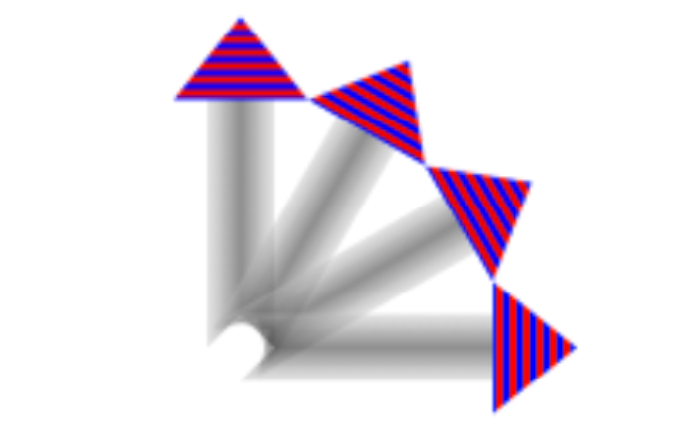
在上面应用clip绘制箭尾的例子里,我们把箭柄变成从左到右是灰-黑-灰的渐变,只需要在addLine并设置了line的宽度后(不要设颜色了),不是去strokePath(),而是:

con.replacePathWithStrokedPath()  // 不再strokePath
con.clip()                        // 再clip一次,奇偶反转
// draw the gradient
let locs : [CGFloat] = [ 0.0, 0.5, 1.0 ]
let colors : [CGFloat] = [
        0.8, 0.4, // starting color, transparent light gray
        0.1, 0.5, // intermediate color, darker less transparent gray
        0.8, 0.4, // ending color, transparent light gray
    ]
let sp = CGColorSpaceCreateDeviceGray()
let grad = CGGradient(
    colorSpace:sp, colorComponents: colors, locations: locs, count: 3)!
con.drawLinearGradient(grad,
    start: CGPoint(89,0), end: CGPoint(111,0), options:[])
con.resetClip() // done clipping

小技巧就是用replacePathWithStrokedPath假装进行了描边(所以只需要线宽并不需要线的颜色),返回了一个新的path,一条粗线变成了一个矩形框。
而一旦添加了这个框,前面的奇偶关系就全反过来了,于是我们再clip一次,这就是头两行代码里做的事。

Colors and Patterns

当你的suer interface sytle changes(比如黑暗模式切换), draw(_:)方法会被立刻调用,被设置UITraitCollection.current,任何支持动态颜色的UIColor能变成相应的颜色,但是CGColor不能,你需要手动触发重绘。

UIKit使用pattern非常简单,把纹理绘制到图片上,然后从纹理图片提取出颜色信息,就能像别的颜色一样setFill了:

// create the pattern image tile
let r = UIGraphicsImageRenderer(size:CGSize(4,4))
let stripes = r.image { ctx in
    let imcon = ctx.cgContext
    imcon.setFillColor(UIColor.red.cgColor)
    imcon.fill(CGRect(0,0,4,4))
    imcon.setFillColor(UIColor.blue.cgColor)
    imcon.fill(CGRect(0,0,4,2))
}
// paint the point of the arrow with it
let stripesPattern = UIColor(patternImage:stripes)
stripesPattern.setFill()
let p = UIBezierPath()
p.move(to:CGPoint(80,25))
p.addLine(to:CGPoint(100,0))
p.addLine(to:CGPoint(120,25))
p.fill()

而Core Graphics则要复杂(也更底层)得多,结合注释看代码:

con.saveGState()
// 非常重要,设置颜色空间
let sp2 = CGColorSpace(patternBaseSpace:nil)!
con.setFillColorSpace(sp2)
// 纹理绘制真正发生的地方
let drawStripes : CGPatternDrawPatternCallback = { _, con in
    con.setFillColor(UIColor.red.cgColor)
    con.fill(CGRect(0,0,4,4))
    con.setFillColor(UIColor.blue.cgColor)
    con.fill(CGRect(0,0,4,2))
}
// 包装成一个callback给CGPattern使用
var callbacks = CGPatternCallbacks(
    version: 0, drawPattern: drawStripes, releaseInfo: nil) // 一个struct

// 核心就是构造这个CGPattern
let patt = CGPattern(info:nil, bounds: CGRect(0,0,4,4),  // cell大小
    matrix: .identity,    // cell变换,这里没有,就用.identity
    xStep: 4, yStep: 4,   // 横向纵向复制cell时的步长
    tiling: .constantSpacingMinimalDistortion,  // 排列方式
    isColored: true,      // 是颜色还是画笔模式,选颜色true
    callbacks: &callbacks)!  // 纹理绘制的方法包在callback里面,传指针
var alph : CGFloat = 1.0
con.setFillPattern(patt, colorComponents: &alph)
con.move(to:CGPoint(80, 25))
con.addLine(to:CGPoint(100, 0))
con.addLine(to:CGPoint(120, 25))
con.fillPath()
con.restoreGState()

Graphics Context Transforms

跟前面的知识点一样,应用Graphics Context Transforms后,也不会影响当前已经绘制的东西。 => CTM即(current transform matrix)。

旋转的中心点是原点,大多数情况下不是你想要的,记得先translate一下。

override func draw(_ rect: CGRect) {
    let con = UIGraphicsGetCurrentContext()!
    con.setShadow(offset: CGSize(7, 7), blur: 12) // 顺便演示下sahdow
    con.beginTransparencyLayer(auxiliaryInfo: nil)  // 这样重叠的阴影不会叠成黑色
    self.arrow.draw(at:CGPoint(0,0))
    for _ in 0..<3 {
        con.translateBy(x: 20, y: 100)
        con.rotate(by: 30 * .pi/180.0)
        con.translateBy(x: -20, y: -100)
        self.arrow.draw(at:CGPoint(0,0)) // 注意这里是用前面方法生成的箭头图片来draw到指定位置
    } 
}

注意,语法虽然是先处理context,再绘制,其实只是告知坐标系的变化,绘制的时候自动应用这些变换。

Erasing

clear(_:)擦除行为取决于context是透明还是实心的(透明擦成透明,实心擦成黑色),只要不是opaque,通通理解为透明,比如background color是nil, 或0.9999的透明度。

Points and Pixels

con.fill(CGRect(100,0,1.0/self.contentScaleFactor,100))应用contentScaleFactor画一条在任何屏幕上都锐利的1像素直线。

Content Mode

the drawing system will avoid asking a view to redraw itself from scratch if possible; instead, it will use the cached result of the previous drawing operation (the bitmap backing store).

If the view is resized, the system may simply stretch or shrink or reposition the cached drawing, if your contentMode setting instructs it to do so.

draw(_:)从原点开始绘制,所以你的contentMode也要相应设置为topLeft。而如果设置为.redraw,则不会使用cached content,每当view被resize的时候,就会调用setNeedsDisplay方法,最终触发draw(_:)进行重绘。

Programming iOS 14 - View

《Programming iOS 14: Dive Deep into Views, View Controllers, and Frameworks》第1章


View

  • A view knows how to draw itself into a rectangular area of the interface.
  • A view is also a responder
  • init:
    • init(frame:): init from code
    • init(coder:): init from nib

Window and Root View

  • Window = top view, ultimate superview
    • iPad with iOS 13+ can have multiple window
  • only one subview: rootViewController's main view -> occupy the entirety of the window

How an App Launches

  • Swift项目自动调用了UIApplicationMain方法,唯一方法,初始化了必要资源
  • 初始化UIApplicationMain(你UIApplication.shared的来源),及其degate class(@UIApplicationMain),并持有,贯穿app整个生命周期
  • UIApplicationMain calls the app delegate’s application(_:didFinish- LaunchingWithOptions:), giving your code an opportunity run.
  • UIApplicationMain creates a UISceneSession, a UIWindowScene, and an instance that will serve as the window scene’s delegate.
    • delegate由plist.info / Application Scene Manifest / Delegate Class Name 决定 ($(PRODUCT_MODULE_NAME).SceneDelegate)
  • 初始化root view
    • UIApplicationMain根据plist判断是否使用了storyboard
      • 初始化UIWindow,并赋给scene delegate's window property
      • 初始化initial view controller 并赋给window的rootViewController属性
      • UIAplicationMain call window's makeKeyAndVisible呈现Interface
    • call scene delegate's scene(_:willConnectTo:options:)
      • 这里也是没用storyboard的话,手动去实现上面几步的地方

Referring to the Windows

  • view.window, if it's nil means it can't be visible to the user
  • scene delegate's window property
  • UIApplication.shared.windows.first!

Do not expect that the window you know about is the app’s only window. The runtime can create additional mysterious windows, such as the UITextEffectsWindow and the UIRemoteKeyboardWindow.

Subview and Superview

曾经,一个view拥有它对应的一个矩形区域,不属于它的subview的其它view在这个矩形内是看不见的,因为重绘矩形的时候是不会考虑到其它view的。同样,也不能draw到矩形区域外去。

OS X10.5起,苹果更新了关于View的架构,iOS也跟着改变了,subview能出现在superview之外(所以反而需要clipping了),一个view也能overlap到另一个view上而无需成为其subview(后来居上)。

结果就是,你现在看到几个互相重叠的我色块,你再也分辨不出view之间的层次关系了。(isDescendant(of:)可以检查层次关系)

没有清空subview的方法,所以:myView.subviews.forEach {$0.removeFromSuperview()}

Color

  • background color不设置表示这个view是透明的
  • 如果再没有进行任何子view的绘制,那么这个view就看不见了
  • 这种view可以作为容器来使用

iOS 13起,引入黑暗模式后,硬编码的颜色就迎来了很大的问题。

  • 纠结的解决方法:
v.backgroundColor = UIColor { tc in
        switch tc.userInterfaceStyle {
        case .dark:
            return UIColor(red: 0.3, green: 0.4, blue: 0.4, alpha: 1)
        default:
            return UIColor(red: 0, green: 0.1, blue: 0.1, alpha: 1)
        }
}

其中, tc是trait collection,一系列特征的集合。

  • 而iOS 13起多了很多.system开头的color,可以自适应
  • asset catalog中可以自定义颜色,并设置不同模式下的颜色

Visibility and Opacity

隐藏一个view:

  • isHidden: view还在,但不会接受触摸事件
    • alpha = 0也会使得isHidden == true
  • isOpaque: 它不影响可见性,但影响drawing system
    • opaque == true的view不具有透明度,将拥有最高的渲染效率
  • frame = CGRect.zero的view也是不可见的

Frame, Bounds and Center

  • 就是视图在父视图(坐标系)中的位置和大小。
  • sizeTofit方法来适应内容的大小。
  • bound原点设为(10, 10)意思是坐标系往左上角移了(10,10)的像素,即原来的(10,10)现在到了原点。
    • bounds.insetBy(dx:dy)是保持中心不变(即同时改变了原点和宽高)
  • center表示的是视图在父级中的位置,所以改变自己的bounds并不改变它的center
    • 本质上frame是center+宽度的便捷方法
    • 如果v2是v1的子视图,v2.center = v1.center 通常不能生效,因为它们的坐标系不同(各自的父级)

Transform and Transform3D

  • Transform改变View的绘制,但不改变它的bounds和center.
  • value is a CGAffineTransform,其实就是一个变换矩阵
  • CGPoint, CGSize, and CGRect all have an applying(_:) method 用来计算应用Transform后的坐标
  • 3D版的就是多了一个垂直于屏幕的Z轴

Window Coordinates and Screen Coordinates

  • The device screen has no frame, but it has bounds.
  • The window has no superview, but its frame is set automatically to match the screen’s bounds.
    • continues to fill the screen

iOS 7及之前,屏幕的坐标系是不变的,如果有旋转,则是对root view进行了一次rotation的transfrom。 但在iOS 8不再用transform而是制定了两套坐标系,通过UICoordinateSpace协议表示 * UIScreen's coordinateSpace: 会旋转的bounds * UIScreen's fixedCoordinateSpace: 不变

读取视图v在设备的固定坐标系下的位置:

let screen = UIScreen.main.fixedCoordinateSpace
let r = v.superview!.convert(v.frame, to: screen)

Trait Collections

将view的一系列环境特征通过view hierarchy层级下传,通过服从UITraitEnvironment协议(提供traitCollection属性和traitCollectionDidChange方法)

traitCollection

  • displayScale: screen's resolution
  • userInterfaceIdiom: general device type, iPhone, or ipad
  • interfaceStyle: is in light/dark mode
  • userInterfaceLevel: .base / .elevated -> affects dynamic background colors

If you implement traitCollectionDidChange(_: ), always call super in the first line. Forgetting to do this is a common beginner mistake.

自定义trait collection只能用下面这种“组合”的方式

let tcdisp = UITraitCollection(displayScale: UIScreen.main.scale)
let tcphone = UITraitCollection(userInterfaceIdiom: .phone)
let tc1 = UITraitCollection(traitsFrom: [tcdisp, tcphone])  // 取交集

自动颜色的底层逻辑:

let yellow = UIColor.systemYellow
let light = UITraitCollection(userInterfaceStyle: .light)
let dark = UITraitCollection(userInterfaceStyle: .dark)
let yellowLight = yellow.resolvedColor(with: light)
// 1 0.8 0 1
let yellowDark = yellow.resolvedColor(with: dark)
// 1 0.839216 0.0392157 1

Size Classes

把屏幕针对宽高和比例做几个分类:

  • .regular(h, v) -> iPad
  • .compact(h) + .regular(v) -> 竖屏iPhone
  • .regular(h) + .compact(v) -> 横屏大iPhone
  • .compact(h, v) -> 横屏小iPhone(5S以前的)

所以, size class:

  • 并不能从traitCollectionDidChange获得,因为iPad永远是.regular
  • 只关心横竖向突然间.regular和.compact的切换

Overriding Trait Collections

You cannot insert a trait collection directly into the inheritance hierarchy simply by setting a view’s trait collection;

For the user interface style, there is a simpler facility available both for a UIViewController and for a UIView: the overrideUserInterfaceStyle property. * default .unspecified,意味着interface style会往下传 * 一旦设为.dark或.light, 就拦截了userInterfaceStyle的继承

Layout

  • Manual layout: layoutSubviews里手动摆放每个视图,可定制最强
  • Autoresizing: 子视图根据autoresizingMask来调整
  • Autolayout: 依赖对“约束”的描述来布局,背后仍然是layoutSubviews
    • 需要禁止autoresizing

Autoresizing

Autoresizing is a matter of conceptually assigning a subview “springs and struts.” A spring can expand and contract; a strut can’t. Springs and struts can be assigned internally or externally, horizontally or vertically.

可变的就叫Spring(有弹性),不变的就叫Strut(不知道怎么翻译)。

  • 一个居中的子视图,本身也会随着父视图而改变大小:
    • 意味着它与父视图的四个边距是不变的 -> 4个外部决定的struts
    • 宽高则是可变的 -> 2个内部决定的spring
  • 而如果子视图不随环境改变大小:
    • 意思着宽高是固定的 -> 2个内部决定的struts
    • 而四个边距通通可变 -> 4个外部决定的spring
  • 一个右下角摆放的OK button
    • 显然,按钮大小不改变 -> 2个内部struts
    • 与右边和底部距离不变 -> 2个外部struts
    • 与顶部和左边距离可变 -> 2个外部spring
  • 一个顶部占满的text field
    • 高度不变 -> 1个vertical struts(内部)
    • 宽度可变 -> 1个horizontal spring(内部)
    • 顶,左,右三边距离不变 -> 3个外部struts
    • 底部距离可变 -> 1个外部spring

所谓的“内部”,是因为教材里用的是internally,就例子来看,其实就是说衡量的对象只是自己,而“距离”明显需要有一个参照物,那就叫externally了。

通过autoresizingMask来描述上述例子中的规则,通过bitmask来进行组合,默认为全空(但是等同于flexibleRightMargin),即普通的流式布局,靠左上对齐,右边距和底边距是动态的。

let v1 = UIView(frame:CGRect(100, 111, 132, 194))
v1.backgroundColor = UIColor(red: 1, green: 0.4, blue: 1, alpha: 1)
let v2 = UIView(frame:CGRect(0, 0, 132, 10))
v2.backgroundColor = UIColor(red: 0.5, green: 1, blue: 0, alpha: 1)
let v1b = v1.bounds
let v3 = UIView(frame:CGRect(v1b.width-20, v1b.height-20, 20, 20))
v3.backgroundColor = UIColor(red: 1, green: 0, blue: 0, alpha: 1)
self.view.addSubview(v1)
v1.addSubview(v2)
v1.addSubview(v3)

演示了上例中的"text fiels"和“ok button",一个置顶,一个靠中下。并且都设置了绝对大小的宽高,那么当你改变v1的frame的时候,比如变宽变高,v2,v3会发生什么呢?

因为你没有设置autoresizingMask,那么就会默认保持左上的边距,这样v2不再铺满顶部,v3也不再紧贴右下角,想要它们跟着v1变化:

v2.autoresizingMask = .flexibleWidth  // 宽度可变
v3.autoresizingMask = [.flexibleTopMargin, .flexibleLeftMargin] // 左,顶可变(这样就能尽情往右下贴了)

AutoResizing在layoutSubviews被调用之前发生。

Autolayout and Constraints

autolayout的子view可以不用autolayout,但是父view必须是autolayout,层层向上到main view of it's view controller, which receives autolayout-related events

autolayout描述不同view的属性之间的位置关系,这些view不必是兄弟,也不非得是父子,只需要保证拥有一个共同的祖先。

谁持有这些约束?

  • 如果是约束自身的宽度(绝对值) -> 属于自身
  • 如果是约束了它对superview的顶部的距离 -> 属于superview
  • 如果约束了几个sibling view的顶部对齐 -> 属于这些view的superview

事实上,iOS不需要你关心这个,.activate让你只管描述约束和关系,然后把它加到正确的view上。

约束基本上是可读的,除了priority, constant, 和 isActive,其它情况你只能移除并重建了。(还有一个跟约束无关的identifier, debug有用)

autolayout发生在layoutSubviews,所以如果你提前设置了frame,图像将会发生跳动。如果你是在layoutSubviews里面设置的就不会。当然你最好线用约束。

如果你的约束涉及到了别的之前并没用使用autolayout的view, The autolayout engine takes care of this for you:

  • it reads the view’s frame
  • and autoresizingMask settings and translates them into implicit constraints

比如:

let lab1 = UILabel(frame:CGRect(270,20,42,22))
lab1.autoresizingMask = [.flexibleLeftMargin, .flexibleBottomMargin]
lab1.text = "Hello"
self.view.addSubview(lab1)

一个右上的label,如果你的另一个view相对lab1来设置autolayout的约束,那么lab1将会自动产生如下四个约束:

1. <NSAutoresizingMaskLayoutConstraint H:[UILabel:'Hello']-(63)-|>
2. <NSAutoresizingMaskLayoutConstraint UILabel:'Hello'.minY == 20>
3. <NSAutoresizingMaskLayoutConstraint UILabel:'Hello'.width == 42>
4. <NSAutoresizingMaskLayoutConstraint UILabel:'Hello'.height == 22>

而且约束的具体数值以当前运行设备来定的,比如上例是iPhone8,屏幕宽度是375,那么:

  • origin(270, 28) 能得到minY = 20 -> 约束2
  • size(42, 22)能得到height = 22, width = 42 -> 约束3,4
  • 结合屏幕宽度,origin, size, 得到右边距离:(375 - 270 - 42 = 63) -> 约束1

但是如果后面还有别的约束的话,很容易千万冲突,毕竟都自动生成的,用户写代码的时候并不会在意当时自动生成的约束在其它场景是否也会有别的约束自动生成

translatesAutoresizingMaskIntoConstraints干的就是这个,所以一般情况下是把它关掉的。

语法:

v1.addConstraint(
    NSLayoutConstraint(item: v2,
        attribute: .leading,
        relatedBy: .equal,
        toItem: v1,
        attribute: .leading,
        multiplier: 1, constant: 0)
)


// compact notation
NSLayoutConstraint.activate([
        lab2.topAnchor.constraint(
            equalTo: lab1.bottomAnchor, constant: 20),
        lab2.trailingAnchor.constraint(
            equalTo: self.view.trailingAnchor, constant: -20)
])

VFL (Visual format notation)

"V:|-10-[v2(20)]"这代表v2的顶部距离superview 10个point,高度是20。如果描述的是水平方向的,则是H,但H是默认的,可以省略。同样,H对应的括号里的数值会被理解为width.

v2是view的名字,通常你需要准备一个字典,这样就可以在VFL中用简单的文字对应任何view了

let d = ["v2":v2,"v3":v3]
NSLayoutConstraint.activate([
    NSLayoutConstraint.constraints(withVisualFormat:
        "H:|[v2]|", metrics: nil, views: d),
    NSLayoutConstraint.constraints(withVisualFormat:
        "V:|[v2(10)]", metrics: nil, views: d),
    NSLayoutConstraint.constraints(withVisualFormat:
        "H:[v3(20)]|", metrics: nil, views: d),
    NSLayoutConstraint.constraints(withVisualFormat:
        "V:[v3(20)]|", metrics: nil, views: d)
].flatMap {$0})

注意这里的flatMap,因为constraints(withVisualFormat:) 返的是一个数组,而期望是一个值,所以用map把$0取了出来。

"[v1(>=20@400,<=30)]",@后面接的是优先级

new features

iOS 10引入的anchorWithOffset(to:),是什么意思?

它也是创建的一个anchor,也就是说可以应用constrain(equalto:)之类的方法,而它本身是一个dimension,所以dimension当然是可以用来比较的。

比如,我有一个view(v1),摆在屏幕上面某位置,现在要摆一个view(v2),希望它出现在v1和屏幕底部(或v1的superview,设为v0)的中间(即垂直居中),显然,如果要用dimension描述出来的话,那就是:

  • v1底部到v2中间的距离
  • 等于
  • v2中部到屏幕底部v0底部的距离
NSLayoutConstraint.activate([
    v1.bottomAnchor.anchorWithOffset(to: v2.centerYAnchor)
        .constraint(equalTo: 
    v2.centerYAnchor.anchorWithOffset(to: view.bottomAnchor))
])

刻意写成了三行,与我上文的三段文字描述对应

iOS 11引入了运行时决定的spacing:

constraint(equalToSystemSpacingAfter:multiplier:)
constraint(greaterThanOrEqualToSystemSpacingAfter:multiplier:)
constraint(lessThanOrEqualToSystemSpacingAfter:multiplier:)
constraint(equalToSystemSpacingBelow:multiplier:)
constraint(greaterThanOrEqualToSystemSpacingBelow:multiplier:)
constraint(lessThanOrEqualToSystemSpacingBelow:multiplier:)

Margins and Guides

  • UIEdgeInsets是对布局的补充,增加“第二条边”
  • Layout guides -> 没看明白
  • safe area可以表示为inset,也可以表示为guides
    • additionalSafeAreaInsets还能增加safe area
let c = v1.topAnchor.constraint(equalTo: v.safeAreaLayoutGuide.topAnchor)

subview might be positioned with respect to its superview’s margins, especially through an autolayout constraint. By default, a view has a margin of 8 on all four edges. 这更像是superview的padding,而iOS并没有padding的概念(因为它并不是CSS的盒子模型)

let c = v.leadingAnchor.constraint(equalTo:
        self.view.layoutMarginsGuide.leadingAnchor)
let arr = NSLayoutConstraint.constraints(withVisualFormat:
        "H:|-[v]", metrics: nil, views: ["v":v])
  • layoutMarginsGuide是只读的,但UIView提供了layoutMargins属性(一个UIEdgeInsets)
    • from iOS11: directionalLayoutMargins(其实就是用了trail, leading等)
  • VFL中用短横线来代表对齐的是margin
  • margin会往下传,用preservesSuperviewLayoutMargins控制
  • margin与safearea不冲突,会自动相加,用insetsLayoutMarginsFromSafeArea关闭
  • viewController有systemMinimumLayoutMargins可以增加main view的margin(减小的话会静默失败,即无效)
    • viewRespectsSystemMinimumLayoutMargins设为false,就能突破这个限制:(上下为0,左右为16,大屏设备左右为20)

Custom layout guides

书中的例子是垂直平均分配几个view,然后发现是把layout guide当成一个view来做的

  • 每个view(除去最后一个) add一个guide
  • ABABABA排列,A是view,B是guide
  • A的底部=B的顶部(除去最后一个A)
  • A的顶部=B的底部(除去第一个A)
  • 令B的高度相等

就把4个A给垂直平均分配了,理解的难点就是guide也当作一个view来用,而语法上又是加到view的属性里的。同时,只要设置guide的高度相等,就会自动占用4个View之外的所有空间平均分配。

这么做只是为了演示layout guide,但是虽然理解了,也不知道能用它来干嘛?当成一个隐形的view去做布局?

Constraint alignment

通过设置view的alignmentRectInsets,可以改变constrains计算的起点。对我来说,又是一种padding?

同样的还有自定义baseline的forFirstBaselineLayout and forLastBaselineLayout.

Intrinsic Content Size

button, label, image等会根据内容和预设有一个instrinsic content size,而且可以用来隐式地产生约束(NSContentSizeLayoutConstraint

  • contentHuggingPriority(for:) 某方向上阻止扩大到比intrinsic size更大的优先级,默认250
  • contentCompressionResistancePriority(for:),阻止缩小的优先级,默认750
  • invalidateIntrinsicContentSize就像invalidate a view,会触发重新计算size

"H:[lab1(>=100)]-(>=20)-[lab2(>=100)]" 这两个label,在屏幕变小时,谁最先缩到100?

let p = lab2.contentCompressionResistancePriority(for: .horizontal)
lab1.setContentCompressionResistancePriority(p+1, for: .horizontal)

这里把lab1阻止缩小的优先级调得更高,那么就是lab2会先缩小

Self-Sizing Views

前面讲的都是superview对subview的影响,这一节反过来,subview的大小影响superview。

假定一个没有设置宽高的view,包含了一个button,我们知道button是有其intrinsic size的(固定的高,宽度由按钮文字决定),

  • 所以这个view也就有了宽高。
  • 但这个宽高拥有低优先级,不会与显式设定的宽高相冲突。
  • 运行时调用systemLayoutSizeFitting(_:)可以让系统优优先级地去按这个size去layout。这个操作是昂贵和低效的。

Stack Views

UIStackView仍然是自动布局体系里的,它的作用是(为其arrangedSubviews)生成一系列约束,可以理解为语法糖。

  • arrangedSubviewssubViews的一个子集
  • stackView也可以添加额外的subView
  • setCustomSpacing(_:after:)设置额外的space
  • 不要再对arrangedSubviews手动添加约束,基本会与你看不见的计算出来的约束冲突
    • 但stackview本身是可以用autolayout来布局的

此时再来看看前面的竖向排列元素,并且间隔相等的例子的写法:

// give the stack view arranged subviews
let sv = UIStackView(arrangedSubviews: views)
// configure the stack view
sv.axis = .vertical
sv.alignment = .fill
sv.distribution = .equalSpacing
// constrain the stack view
sv.translatesAutoresizingMaskIntoConstraints = false
self.view.addSubview(sv)
let marg = self.view.layoutMarginsGuide
let safe = self.view.safeAreaLayoutGuide
NSLayoutConstraint.activate([
    sv.topAnchor.constraint(equalTo:safe.topAnchor),
    sv.leadingAnchor.constraint(equalTo:marg.leadingAnchor),
    sv.trailingAnchor.constraint(equalTo:marg.trailingAnchor),
    sv.bottomAnchor.constraint(equalTo:self.view.bottomAnchor),
])

顺便注意以下里对layoutMargin和safearea的引用,都是通过layout guide的。

debug会发现stack view其实帮你做了你之前做的事:generating UILayoutGuide objects and using them as spacers

stack view还有一个特性就是能自适应arrangedSubviews的变化。如果你把它理解为一个计算引擎,可能就好理解了。

Internationalization

使用.leading, .trailing等是为了适应不同语言的左右顺序,引入到布局里却会出现问题,并不是从右到左的语言的横向布局就也要相应反转。UIView.semanticContentAttribute可以人为控制,

  • 默认值是.unspecified,
  • .playback or .spatial将会不应用翻转。
  • .forceLeftToRight or .forceRightToLeft则是手动指定一个方向

UIView.effectiveUserInterfaceLayoutDirection能report出这个trait

You can test your app’s right-to-left behavior easily by changing the scheme’s Run option Application Language to “Right to Left Pseudolanguage.”

Debug autolayout

(lldb) e -l objc -- [[UIApplication sharedApplication] windows][0]
(UIWindow *) $1 = ...
(lldb) e -l objc -O -- [$1 _autolayoutTrace]

To get a full list of the constraints responsible for positioning a particular view within its superview, log the results of calling the UIView instance method constraintsAffectingLayout(for:).

Configuring Layout in Nib

这一部分内容建议打开Xcode对着原文操作,多为界面操作

Conditional Interface Design

wC, HR等用来表示宽高在正常和压缩空间里的不同组合。

思路:先架构通用的视图和约束,然后用两种方法之一来描述不同size class下的特殊布局:

  • in the Attributes or Size inspector
  • design that difference in the canvas:

Xcode View Features

Designable Views and Inspectable Properties

有关Xcode的预览这一节可以看看,以及@IBDesignable方法能在xib里面呈现(教程里是在willMove(toSuperview)方法里调用)

Layout Events

updateConstraints

  • (向上冒泡)propagated up the hierarchy, starting at the deepest subview
  • called at launch time,然后几乎不会调用,除非手动
  • 也从不直接调用,而是通过
    • updateConstraintsIfNeeded方法
    • 或是setNeedsUpdateConstraints

traitCollectionDidChange(_:)

  • (向下传播)propagated down the hierarchy of UITraitEnvironments.

layoutSubviews

  • The layoutSubviews message is the moment when layout actually takes place.
  • (向下传播) propagated down the hierarchy, starting at the top (typically the root view) and working down to the deepest subview.
  • If you’re not using autolayout, layoutSubviews does nothing by default
  • layoutSubviews is your opportunity to perform manual layout after autoresizing has taken place.
  • If you are using autolayout, you must call super or the app will crash (with a helpful error message).
  • 从不直接调用:
    • layoutIfNeeded
    • setNeedsLayout

When you’re using autolayout, what happens in layoutSubviews?

  1. The runtime, having examined and resolved all the constraints affecting this view’s subviews,
  2. and having worked out values for their center and bounds,
  3. now simply assigns center and bounds values to them.

In other words, layoutSubviews performs manual layout!

所以如果你需要在auto layout之后微调,layoutSubviews是法定的入口:

  1. call super, causing all the subviews to adopt their new frames
  2. examine those frames, 如果不满意,则对frame进行微调(或者boundscenter

这也是autolayout engine自己的步骤,要注意的是你必须要和autolayout engine来协作,并且不要调用setNeedsUpdateConstraints(时机已过)