walker's code blog

coder, reader

使用openssl创建自签名证书及部署到IIS教程

#创建自签名证书 首先,创建一个私钥文件:

openssl genrsa -out myselfsigned.key 2048

然后利用私钥创建自签名证书:

openssl req -new -x509 -key myselfsigned.key -out myselfsigned.cer -days 36500

执行上面的两个操作之后会提示输入以下几个内容(为了显示正常尽量使用英文):

  1. Country Name (2 letter code) [AU]:CN //国家简称
  1. State or Province Name (full name) [Some-State]:GuangDong //州或省的名字
  2. Locality Name (eg, city) []:ShenZhen //区或市县的名称
  3. Organization Name (eg, company) [Internet Widgits Pty Ltd]:Comapny //公司或组织名
  4. Organizational Unit Name (eg, section) []:Mobile //单位或者是部门名称
  5. Common Name (e.g. server FQDN or YOUR name) []:xxxxxx //域名或服务器名或IP
  6. Email Address []:[email protected] //Email地址

注, 上述可直接在命令中用-subj跟在语句后面, 如:

openssl req -new -x509 -key myselfsigned.key -out myselfsigned.cer -days 36500 -subj /CN=域名或服务器名或IP

至此, 生成的myselfsigned.cer分别应用到服务器端以及客户端(通过邮件, 链接等方式下发), 即可使用, 配置IIS见下文

#创建自己的证书颁发机构(CA) 即使是测试目的, 也会出现有多个站点需要自定义证书的情况, 不可能要求用户每个站点装一个 我们何不把自己添加成一个证书颁发机构(CA), 然后把这个证书装给客户端, 那么由这个CA颁发的证书都会被自动信任.

首先, 用同样的语法创建一个证书, 我们把名字取明确一些, 就叫myCA吧(跟第一步生成普通证书是一样一样的, 只是这次我们把它理解成一个证书颁发机构)

openssl genrsa -out myCA.key 2048
openssl req -new -x509 -key myCA.key -out myCA.cer -days 36500

然后, 基于这个证书生成一个证书请求(CSR), (同样, 先生成一个key, 要用key来请求)

openssl genrsa -out server.key 2048
openssl req -new -out server.req -key server.key -subj /CN=域名

注:

  1. 一旦域名配置了, 用不同于这个域名的主机名来请求, 就会校验失败
  2. 这里用到了上面说的-subj参数

最后, 通过服务器证书(我们理解的CA), 对这个签发请求进行签发

openssl x509 -req -in server.req -out server.cer -CAkey myCA.key -CA myCA.cer -days 36500 -CAcreateserial -CAserial serial

#配置IIS 我们的使用场景是IIS伺服了一个静态文件服务器(没错, 是用来放iOS企业部署的的plist和ipa文件的), 做到如下几步

##转化证书格式 IIS导入证书需要转化为pkcs12格式(X509格式?), 中间会询问一次密码, 牢记, 或者与导出的文件一起保存

openssl pkcs12 -export -clcerts -in server.cer -inkey server.key -out iis.pfx

现在总结一下, 目前为止, 除去keycar, 生成了myCA.cer, server.ceriis.pfx三个文件

##将myCA.cer添加为”受信任的根证书颁发机构” 打开IE > 工具 > Internet选项 > 内容 > 证书 > 受信任的根证书颁发机构 > 导入 > 选择iis.pfx > 输入密码 > 导入

##添加服务器证书 这需要两个步骤

首先, 在IIS管理器(inetmgr)的根目录上(就是机器名), 选择”服务器证书”, 导入我们刚才用server.cer生成的iis.pfx, 即给IIS添加了一个证书(如果有多个, 重复以上步骤)

然后, 找到网站节点, 右键, “编辑绑定”, 添加一个供https访问的端口(默认是443), 此时会要求你选择一个证书, 把刚才通过管理器添加的证书名选出来, 即可.

最后, 把server.cer通用你们企业自己的方式颁发给需要使用的客户端(邮件, 链接等, 均可), 如果是iPhone, 点击了server.cer文件后, 会导航到设置里面安装, 安装并信任后, 在设置 > 通用 > Profiles里面可以看到你信任的证书使用openssl创建自签名证书及部署到IIS教程
libxml-tree-h-file-not-found

stackoverflow用户对添加libxml2库表现出了极大的抱怨,原因在要把它好好地添加进去实在是太复杂了。

我就是因为出现了'libxml/tree.h file not found’错误,才发现的这篇贴子,照着做,错误就消除了,备注如下:

原始地址:http://stackoverflow.com/questions/1428847/libxml-tree-h-no-such-file-or-directory

见e.w. parris的答案

Adding libxml2 is a big, fat, finicky pain in the ass. If you're going to do it, do it before you get too far in building your project.

You need to add it in two ways:

1. Target settings

Click on your target (not your project) and select Build Phases.

Click on the reveal triangle titled Link Binary With Libraries. Click on the + to add a library.

Scroll to the bottom of the list and select libxml2.dylib. That adds the libxml2 library to your project.

注: xcode 7 以后, .dylib文件变成了.tbd文件, 想要引用.dylib文件, 点add otherscmd+shift+G→type /usr/lib → find libxml2.dylib or libxml2.2.dylib

2. Project settings

Now you have to tell your project where to look for it three more times.

Select the Build Settings tab.

Scroll down to the Linking section. Under your projects columns double click on the Other Linker Flags row. Click the + and add -lxml2 to the list.

Still more.

In the same tab, scroll down to the Search Paths section.

Under your projects column in the Framework Search Paths row add /usr/lib/libxml2.dylib.

In the Header Search Paths and the User Header Search Paths row add $(SDKROOT)/usr/include/libxml2.

In those last two cases make sure that path is entered in Debug and Release.

3. Clean

Under the Product Menu select Clean.

Then, if I were you (and lets face it, I probably am) I'd quit Xcode and walk away. When you come back and launch you should be good to go.

iOS应用3D-Touch快捷访问

#用法

添加快捷项(UIApplicationShortcutItem)

有两种途径, 编辑Info.plist或代码添加

Info.plist

<key>UIApplicationShortcutItems</key>
<array>
    <dict>
       <!--图标, 必须-->
    	<key>UIApplicationShortcutItemIconType</key>
    	<string>UIApplicationShortcutIconTypeCapturePhoto</string>
    	<!--标题, 必须-->
    	<key>UIApplicationShortcutItemTitle</key>
    	<string>Scan</string>
    	<!-副标题-->
    	<key>UIApplicationShortcutItemSubtitle</key>
    	<string>QR Code</string>
    	<!--快捷项标识符-->
    	<key>UIApplicationShortcutItemType</key>
    	<string>$(PRODUCT_BUNDLE_IDENTIFIER).Scan</string>
    </dict>
</array>

完整可选项见文档

代码添加

// Construct the items.
let shortcut3 = UIMutableApplicationShortcutItem(
    type: ShortcutIdentifier.Third.type, 
    localizedTitle: "Play", 
    localizedSubtitle: "Will Play an item", 
    icon: UIApplicationShortcutIcon(type: .play), 
    userInfo: [
        AppDelegate.applicationShortcutUserInfoIconKey: UIApplicationShortcutIconType.play.rawValue
    ]
)

let shortcut4 = ... // 同上

// Update the application providing the initial 'dynamic' shortcut items.
application.shortcutItems = [shortcut3, shortcut4]

良好实践

  1. 实现一个(BOOL)handleShortcutItem:(UIApplicationShortcutItem *)shortcutItemBOOL值的方法, 里面进行业务操作
  2. 实现代理方法:
- (void)application:(UIApplication *)application performActionForShortcutItem:(UIApplicationShortcutItem *)shortcutItem completionHandler:(void (^)(BOOL))completionHandler {
    completionHandler([self handleShortcutItem:shortcutItem]);
}
  1. didBecomeActive方法里判断是否需要 handle 快捷方式
- (void)applicationDidBecomeActive:(UIApplication *)application {
    if(!self.launchedShortcutItem) return;
    [self handleShortcutItem:self.launchedShortcutItem];
    self.launchedShortcutItem = nil;
}
  1. 3说明如果你需要提取一个属性launchedShortcutItem
  2. 如果提取了属性, 那么didFinishLaunch也可以顺便改为:
BOOL shouldPerformAdditionalDelegateHandling = YES;
UIApplicationShortcutItem *shortcutItem = (UIApplicationShortcutItem *)launchOptions[UIApplicationLaunchOptionsShortcutItemKey];
if(shortcutItem) {
    self.launchedShortcutItem = shortcutItem;
    shouldPerformAdditionalDelegateHandling = NO;
}

// 你的其它初始代码

return shouldPerformAdditionalDelegateHandling;  // 通常这里返的是 YES;

试试吧

#参考资料

  1. 官方文档
  2. 示例代码
  3. 快捷图标
  4. 模拟器支持
  5. iOS Keys 一些键值的说明

备份篇绘制聊天气泡的文章

记记思路

- (void)drawRect:(CGRect)rect
{
    CGContextRef context=UIGraphicsGetCurrentContext();
    CGContextSetLineWidth(context, .5f);
    CGContextSetStrokeColorWithColor(context, [UIColor lightGrayColor].CGColor);
    CGContextSetRGBFillColor(context, 1, 1, 1, 1);

    rect.origin.y++;
    CGFloat radius = cornerRadius;

    CGFloat minx = CGRectGetMinX(rect), midx = CGRectGetMidX(rect), maxx = CGRectGetMaxX(rect);
    CGFloat miny = CGRectGetMinY(rect), midy = CGRectGetMidY(rect), maxy = CGRectGetMaxY(rect);

    CGMutablePathRef outlinePath = CGPathCreateMutable();

    if (![User isCurrentUser:message.user])
    {
        minx += 5;

        CGPathMoveToPoint(outlinePath, nil, midx, miny);
        CGPathAddArcToPoint(outlinePath, nil, maxx, miny, maxx, midy, radius);
        CGPathAddArcToPoint(outlinePath, nil, maxx, maxy, midx, maxy, radius);
        CGPathAddArcToPoint(outlinePath, nil, minx, maxy, minx, midy, radius);
        CGPathAddLineToPoint(outlinePath, nil, minx, miny + 20);
        CGPathAddLineToPoint(outlinePath, nil, minx - 5, miny + 15);
        CGPathAddLineToPoint(outlinePath, nil, minx, miny + 10);
        CGPathAddArcToPoint(outlinePath, nil, minx, miny, midx, miny, radius);
        CGPathCloseSubpath(outlinePath);

        CGContextSetShadowWithColor(context, CGSizeMake(0,1), 1, [UIColor lightGrayColor].CGColor);
        CGContextAddPath(context, outlinePath);
        CGContextFillPath(context);

        CGContextAddPath(context, outlinePath);
        CGContextClip(context);
        CGPoint start = CGPointMake(rect.origin.x, rect.origin.y);
        CGPoint end = CGPointMake(rect.origin.x, rect.size.height);
        CGContextDrawLinearGradient(context, [self normalGradient], start, end, 0);
    }
    else
    {
        maxx-=5;
        CGPathMoveToPoint(outlinePath, nil, midx, miny);
        CGPathAddArcToPoint(outlinePath, nil, minx, miny, minx, midy, radius);
        CGPathAddArcToPoint(outlinePath, nil, minx, maxy, midx, maxy, radius);
        CGPathAddArcToPoint(outlinePath, nil, maxx, maxy, maxx, midy, radius);
        CGPathAddLineToPoint(outlinePath, nil, maxx, miny + 20);
        CGPathAddLineToPoint(outlinePath, nil, maxx + 5, miny + 15);
        CGPathAddLineToPoint(outlinePath, nil, maxx, miny + 10);
        CGPathAddArcToPoint(outlinePath, nil, maxx, miny, midx, miny, radius);
        CGPathCloseSubpath(outlinePath);

        CGContextSetShadowWithColor(context, CGSizeMake(0,1), 1, [UIColor lightGrayColor].CGColor);
        CGContextAddPath(context, outlinePath);
        CGContextFillPath(context);

        CGContextAddPath(context, outlinePath);
        CGContextClip(context);
        CGPoint start = CGPointMake(rect.origin.x, rect.origin.y);
        CGPoint end = CGPointMake(rect.origin.x, rect.size.height);
        CGContextDrawLinearGradient(context, [self greenGradient], start, end, 0);
    }


    CGContextDrawPath(context, kCGPathFillStroke);

}

- (CGGradientRef)normalGradient
{

    NSMutableArray *normalGradientLocations = [NSMutableArray arrayWithObjects:
                                               [NSNumber numberWithFloat:0.0f],
                                               [NSNumber numberWithFloat:1.0f],
                                               nil];


    NSMutableArray *colors = [NSMutableArray arrayWithCapacity:2];

    UIColor *color = [UIColor whiteColor];
    [colors addObject:(id)[color CGColor]];
    color = [StyleView lightColorFromColor:[UIColor cloudsColor]];
    [colors addObject:(id)[color CGColor]];
    NSMutableArray  *normalGradientColors = colors;

    int locCount = [normalGradientLocations count];
    CGFloat locations[locCount];
    for (int i = 0; i < [normalGradientLocations count]; i++)
    {
        NSNumber *location = [normalGradientLocations objectAtIndex:i];
        locations[i] = [location floatValue];
    }
    CGColorSpaceRef space = CGColorSpaceCreateDeviceRGB();

    CGGradientRef normalGradient = CGGradientCreateWithColors(space, (__bridge CFArrayRef)normalGradientColors, locations);
    CGColorSpaceRelease(space);

    return normalGradient;
}

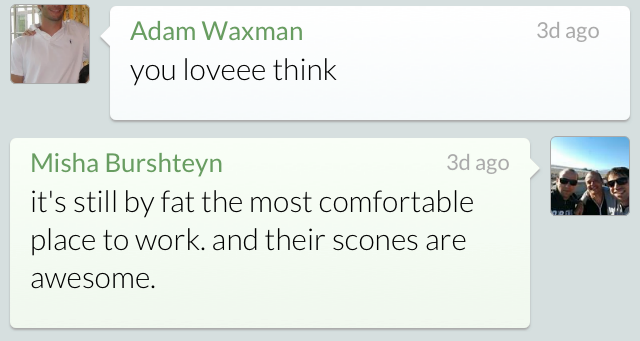
效果

来源StackOverflow

UIImage转NSData有时为nil

一般, 我们会用UIImagePNGRepresentation, UIImagePNGRepresentation来达到目的, 但有时候, 发现它的返回值为nil...

不需要怀疑这么简单处理有什么问题, 文档 就是如此:

Return Value

A data object containing the PNG data, or nil if there was a problem generating the data. This function may return nil if the image has no data or if the underlying CGImageRef contains data in an unsupported bitmap format.

也就是说, 没有data的情况还是挺多的, 我们还是放弃这个方法吧, 换别的吧, 提供三种思路

复制一张图片

var imageName: String = "MyImageName.png"
var image = UIImage(named: imageName)
var rep = UIImagePNGRepresentation(image)

当然, 这不能保证什么

重绘一张图片

UIGraphicsBeginImageContext(originalImage.size);
[originalImage drawInRect:CGRectMake(0, 0, originalImage.size.width, originalImage.size.height)];
UIImage *newImage = UIGraphicsGetImageFromCurrentImageContext();
UIGraphicsEndImageContext();

UIGraphicsBeginImageContext(CGSizeMake(1, 1))
let image = UIGraphicsGetImageFromCurrentImageContext()
UIGraphicsEndImageContext()

不用 UIImage

1和2都没验证过, 但都是在StackOverflow上别人贴出的答案, 我之所以不验证了, 因为我是这么做的

CGDataProviderRef provider = CGImageGetDataProvider(image.CGImage);
NSData* data = (id)CFBridgingRelease(CGDataProviderCopyData(provider));

通了就没动力继续试啦, 而且本身已经很简洁了, 此外方法名也非常直白"DataProvider", 还想怎样!

理解__bridge

比较受用, 全文转载, 原文点此

##为什么使用要使用 Object-C++

在 iOS 开发当中,难免会使用到 OC 跟 C++混编的情况,一是为了程序对负责计算性能的提高,二是因为某些三方开源库是用 C++ 来写的,这两个原因也是让我下决心学好 C++ 的因素,毕竟开源才是王道,一直只写着 OC 却不能窥其究竟,确实难受,让只能让人停留在门外,坐井观天。

##什么是桥接 ?

桥接,是 object-c 在 ARC 环境下开发出来的一种用作转换 C 指针跟 OC 类指针的一种转换技术。 当然,这种技术在 MRC 中是不存在的,也就是桥接是 ARC 的连带产物,因为 ARC 就是解放了我们程序员的双手,当然对内存的概念又淡化了,所以在 ARC 未被业界接受之前多少也是因为这个桥接让人们感觉恶心。

##桥接用到的3个方法:

(__bridge <#type#>)<#expression#>

(__bridge_retained <#CF type#>)<#expression#> (__bridge_transfer <#Objective-C type#>)<#expression#>)

##桥接方法的用途:

__bridge :用作于普通的 C 指针与 OC 指针的转换,不做任何操作。

void *p;
NSObject *objc = [[NSObject alloc] init];
p = (__bridge void*)objc;

这里的 void *p 指针直接指向了 NSObject *objc 这个 OC 类,p 指针并不拥有 OC 对象,跟普通的指针指向地址无疑。所以这个出现了一个问题,OC 对象被释放,p 指针也就 Gameover 了。

__bridge_retained:用作 C 指针与 OC 指针的转换,并且也用拥有着被转换对象的所有权

那么这个是什么意思呢?可以先看下面展示代码

@interface ABSClass : NSObject
@property (nonatomic, copy) NSString *name;
@end
@implementation ABSClass
@end
int main(int argc, const char * argv[]) {
    @autoreleasepool {
        void *p;
        {
            ABSClass *objc = [[ABSClass alloc]init];
            objc.name = @"我们";
            p = (__bridge void*)objc;
        }
        NSLog(@"%@", [(__bridge ABSClass *)p name]);
    }
    return 0;
}

这段代码看上去大体与上面一段一样,但是我们添加了一个作用域 {} , 在作用域中创建 ABSClass *objc 这个对象,然后用作用域外的 p,指针进行桥接(__bridge)指向,然后输出 ABSClass objc这个对象的name属性的值,按道理来说我们会看到控制台上输出我们这两个字。 但是,当我们一运行程序,毫无疑问,程序很崩溃在NSLog(@”%@”, [(__bridge ABSClass )p name]);这句代码中。 有点基础的小伙伴都知道,当ABSClass objc这个对象出了作用域范围,内存就会被回收,但是我们在作用域范围外还用void p去访问objc 的内存,当然会崩溃啦。 那么,我们尝试修改为以下代码

@interface ABSClass : NSObject
@property (nonatomic, copy) NSString *name;
@end
@implementation ABSClass
@end
int main(int argc, const char * argv[]) {
    @autoreleasepool {
        void *p;
        {
            ABSClass *objc = [[ABSClass alloc]init];
            objc.name = @"我们";
            p = (__bridge_retained void*)objc;
        }
        NSLog(@"%@", [(__bridge ABSClass *)p name]);
    }
    return 0;
}

程序正常运行,因为我们使用了 __bridge_retained 就相当于 MRC 下的 retain ,将内存计数器 +1,然后用 void *p 指向改内存,所以当 *objc过了作用域,引用计算器 -1,也并没有释放 void *p 所引用的内存。

__bridge_transfer:用作 C 指针与 OC 指针的转换,并在拥有对象所有权后将原先对象所有权释放。(只支持 C 指针转换 OC 对象指针)

说起来相当绕口,其实可以理解为先将对象的引用计数器 +1,然后再将引用计数器 -1。 通过以下代码展现:

@interface ABSClass : NSObject
@property (nonatomic, copy) NSString *name;
@end
@implementation ABSClass
@end
int main(int argc, const char * argv[]) {
    @autoreleasepool {
        void *p;
        @autoreleasepool {
            ABSClass *obj = [[ABSClass alloc] init];
            obj.name = @"我们";
            p = (__bridge_retained void *)obj;
        }
        id obj = (__bridge_transfer id)p;
        NSLog(@"%@", [(__bridge ABSClass *)p name]);
        NSLog(@"%@", [(ABSClass *)obj name]);
        NSLog(@"Hello, World!");
    }
    return 0;
}

以上代码可以正确运行,在我们将 void *p 指针转换为进行 __bridge_transfer 为 OC 指针,这个操作其实相当于 - (void)set: 操作,转换为 MRC 为如下代码 :

id obj = (id)p
[obj retain];
[(id)p release];

我们先将新值 retain,然后再将旧值 release,这样是为了保证引用计数器始终为1,一个 retain 对应一个 release。

好了,以上做法就是 C/C++ 指针与 OC 对象指针的相互转换介绍,希望能帮助更多的小伙伴理解。

Xcode自增build号

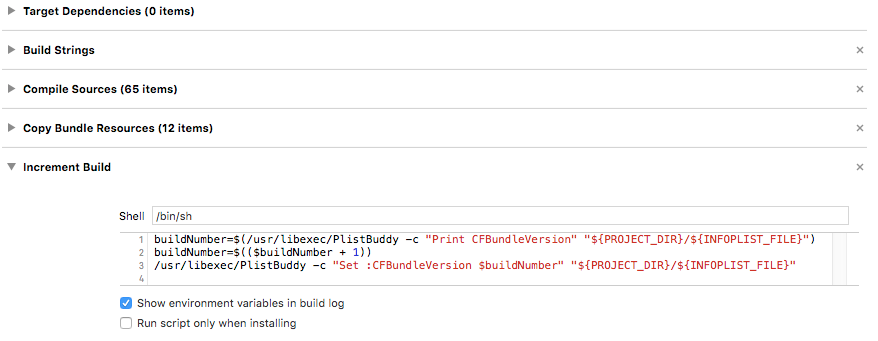
脚本:

buildNumber=$(/usr/libexec/PlistBuddy -c "Print CFBundleVersion" "${PROJECT_DIR}/${INFOPLIST_FILE}")  
buildNumber=$(($buildNumber + 1))  
/usr/libexec/PlistBuddy -c "Set :CFBundleVersion $buildNumber" "${PROJECT_DIR}/${INFOPLIST_FILE}"

To use this script, follow these steps:

  1. Select your app target in the project overview.
  2. Select Build Phases.
  3. Add a new build phase ("New Run Script Phase").
  4. Enter the above script in the appropriate field.
  5. In your Info.plist, ensure the current build number is numeric (是的, 主要是保证你原来填写的确实是数字就行了)

来源: http://crunchybagel.com/auto-incrementing-build-numbers-in-xcode/

或者一些别的思考: http://stackoverflow.com/questions/9258344/better-way-of-incrementing-build-number

UIMenuController的使用

#1, 基本使用 以对一个UILabel长按弹出菜单为例 ##子类化UILabel 因为需要覆盖这几个方法: - (BOOL)canBecomeFirstResponder; 返回YES 同时需要在每次UI元素出现的时候去becomeFirstResponder一次,才能显示出菜单. 在我的实测中, 我在ViewDidLoad里面这么做了, 当UI导航到别的页面(导航控件, 或modal页面), 然后回来, 菜单又失效了, 所以我写到ViewWillAppear里面去了, 通过

- (BOOL)canPerformAction:(SEL)action withSender:(nullable id)sender; 这个方法会在每一个menuItem生成的时候调用一次, 因此在方法体里就要根据action来判断是否需要显示在菜单里, 如果不需要, 则返回NO. 也就是说, 如果你什么都不做, 直接返一个YES, 那么所有的默认菜单项都会显示出来, 此处我们只要一个Copy选项吧:

- (BOOL)canPerformAction:(SEL)action withSender:(id)sender {
    return (action == @selector(copy:));
}

##添加触发方式 如果是以长按为触发, 则添加长按手势, 代码片段如下:

// 在awakeFromNib里面添加即可
UILongPressGestureRecognizer *menuGesture = [[UILongPressGestureRecognizer alloc] initWithTarget:self action:@selector(menu:)];
    menuGesture.minimumPressDuration = 0.2;
    [self addGestureRecognizer:menuGesture];

- (void)menu:(UILongPressGestureRecognizer *)sender {
    if (sender.state == UIGestureRecognizerStateBegan) {
        UIMenuController *menu = [UIMenuController sharedMenuController];
        [menu setTargetRect:self.frame inView:self.superView]; // 把谁的位置告诉控制器, 菜单就会以其为基准在合适的位置出现
        [menu setMenuVisible:YES animated:YES];
    }
}

##编写菜单行为 上面我们只要了copy, 那么就覆盖默认的copy方法:

- (void)copy:(id)sender {
    UIPasteboard *paste = [UIPasteboard generalPasteboard];
    paste.string = self.text;
}

#2, 添加自定义菜单项 自定义菜单只需要在菜单控制器添加几个item即可, 结合上例, 我的那个label是显示电话号码的, 那么就让它多显示一个”打电话”和一个”发短信”菜单吧, 唯一需要注意的是, 在设置自定义菜单项时, 设置的items只影响自定义部分, 标准菜单项仍然是由canPerformAction决定的:

UIMenuItem *itemCall = [[UIMenuItem alloc] initWithTitle:@"Call" action:@selector(call:)];
UIMenuItem *itemMessage = [[UIMenuItem alloc] initWithTitle:@"Message" action:@selector(message:)];
[[UIMenuController sharedMenuController] setMenuItems: @[itemCall, itemMessage]];
[[UIMenuController sharedMenuController] update];

注, 添加了两个菜单后, canPerformAction需要相应变化, 自己想想应该怎么改. 也可以在下一节看代码. 当然也要自行写完里面的call和message方法, 参照copy的写法即可

#3, UITableViewCell长按显示菜单 ##标准菜单项 UITableView里面长项条目显示标准菜单, 只需要实现下述代理方法即可:

- (BOOL)tableView:(UITableView *)tableView shouldShowMenuForRowAtIndexPath:(NSIndexPath *)indexPath {
    return YES;
}

- (BOOL)tableView:(UITableView *)tableView canPerformAction:(SEL)action forRowAtIndexPath:(NSIndexPath *)indexPath withSender:(id)sender {
    return (action == @selector(copy:)); // 只显示Copy
}

- (void)tableView:(UITableView *)tableView performAction:(SEL)action forRowAtIndexPath:(NSIndexPath *)indexPath withSender:(id)sender {
    if (action == @select(copy:)) {
        UIPasteboard *paste = [UIPasteboard generalPasteboard];
        paste.string = cell.detailLabel.text; // 自行写业务逻辑
    }
}

#4, TableViewCell添加自定义菜单项

同样也得子类化一个TableViewCell,目的也是为了覆盖同样的几个方法:

- (BOOL)canPerformAction:(SEL)action withSender:(id)sender {
    return (action == @selector(copy:) || action == @selector(call:) || action == @selector(message:)); // 此处我们把三个行为都写全了, 回答上一节的问题
}

- (BOOL)canBecomeFirstResponder {
    return YES;
}

但因为tableView已经实现了菜单, 所以不需要显式为每个cell去becomeFirtResponder了.

添加菜单项的方法同上, 写菜单行为的方法同copy:, 都是一样的.

注: 你们或许已经发现了, 添加自定义菜单项的时候, 仍然需要canPerformAction, 在这里, 与tableView代理里面的同名方法有什么关系? 是的, 两个都要写, tableView里面的只会影响标准菜单, 文档说只支持这两个UIResponderStandardEditActions (copy/paste)

注: 然而, - (void)tableView:(UITableView *)tableView performAction:(SEL)action forRowAtIndexPath:(NSIndexPath *)indexPath withSender:(id)sender这个方法却有点别扭, 一来不需要去实现了, 二来又不能注释掉(你们自己试一下), 等于一定要留一个空的方法体在那里…

OC静态库里NSClassFromString得到nil的解决

如果你在静态库中有从类名反射回类的代码, 如下:

NSString *myClassStr = @"myClass";  
Class myClazz = NSClassFromString(myClassStr);  
if (myClazz) {  
    id myClassInit = [[myClazz alloc] init];  
}

有时候(经常)会出现得到了Class为nil的情况, 网上搜索, 一般是这么说的:

The class object named by aClassName, or nil if no class by that name is currently loaded. If aClassName is nil, returns nil.

来自于64位系统的一个bug:

IMPORTANT: For 64-bit and iPhone OS applications, there is a linker bug that prevents -ObjC from loading objects files from static libraries that contain only categories and no classes. The workaround is to use the -all_load or -force_load flags. -all_load forces the linker to load all object files from every archive it sees, even those without Objective-C code. -force_load is available in Xcode 3.2 and later. It allows finer grain control of archive loading. Each -force_load option must be followed by a path to an archive, and every object file in that archive will be loaded.

就我的实测

  • 首先, 你需要在你的主项目(的target)对build setting进行更改, 而不是静态库的项目!
  • 其次, -all_load有效, -force_load甚至编译都过不了
  • 最后, 结合上面, 就是在主项目(引用静态库的项目)的build setting里面搜索other linker flags, 然后把-all_load加进去就行了

通过GPS数据反向地理信息编码得到当前位置信息

检查可用性

这属于基础知识, 不赘述, 总的来说,你的设备的支持要打开, 添加CoreLocation的framework, 引用头文件, 添加委托,然后, 好的实践是在使用前编程检查相关可用性:

- (CLLocationManager *)locationManager
{
    if(!_locationManager){
        if([CLLocationManager locationServicesEnabled]){
            _locationManager = [[CLLocationManager alloc] init];
            _locationManager.delegate = self;
            _locationManager.desiredAccuracy = kCLLocationAccuracyHundredMeters;
            CLAuthorizationStatus status = [CLLocationManager authorizationStatus];
            if (status == kCLAuthorizationStatusNotDetermined) {
                NSLog(@" not determined");
                if([_locationManager respondsToSelector:@selector(requestWhenInUseAuthorization)]){
                    [_locationManager requestAlwaysAuthorization];
                }
            }else if (status == kCLAuthorizationStatusDenied) {
                NSLog(@"denied");
            }else if (status == kCLAuthorizationStatusRestricted) {
                NSLog(@"restricted");
            }else if (status == kCLAuthorizationStatusAuthorizedAlways) {
                NSLog(@"always allowed");
            }else if (status == kCLAuthorizationStatusAuthorizedWhenInUse) {
                NSLog(@"when in use allowed");
            }else{
            }
        }else _locationManager = nil;
    }
    return _locationManager;
}

注意kCLAuthorizationStatusNotDetermined状态, iOS8以后, 需要手动编辑info.plist文件, 添加两个请求用户授权时的文案, 才能正常使用, 这里觉得匪夷所思:

<key>NSLocationWhenInUseUsageDescription</key><string>请授权使用地理位置服务</string>
<key>NSLocationAlwaysUsageDescription</key><string>请授权使用地理位置服务</string>

以上, 可随便参考网上任何一篇教程

请求地理位置并反向编码

这里需要注意的是, 苹果的CLGeocoder API并不允许你频繁调用, 一分钟一次为宜, 所以你千万不要[self.locationManager startUpdatingLocation], 然后在locationManager:didChangeAuthorizationStatus: 方法里去decode, 因为只是为了获取城市, 精度要求不高, 并且不需要持续更新, 所以我们就不update了, 只request一次, 然后在获取位置失败的时候再手动request一次:

+ (void)locationManager:(nonnull CLLocationManager *)manager didFailWithError:(nonnull NSError *)error{
    NSLog(@"fail with error:\n %@", error);
    [self.locationManager requestLocation];
}

相关解释参考这篇文章

#语言的问题

因为习惯用英文系统, 就碰到请求回来的信息是英文的原因, 这里苹果是固化起来的, 暂时不支持用参数来指定返回数据的显示语言, 借鉴这篇文章的思路, 在请求前把当前语言设置保存起来, 临时改成中文, 请求结束后再修改回来:

+ (void)locationManager:(nonnull CLLocationManager *)manager didUpdateLocations:(nonnull NSArray *)locations{
    CLLocation *location = [locations lastObject];
    CLGeocoder *geocoder = [CLGeocoder new];
    // 修改语言为中文
    NSArray *currentLanguageArray = [[NSUserDefaults standardUserDefaults] objectForKey:@"AppleLanguages"];
    [[NSUserDefaults standardUserDefaults] setObject: [NSArray arrayWithObjects:@"zh_Hans", nil] forKey:@"AppleLanguages"];
    [geocoder reverseGeocodeLocation:location completionHandler:^(NSArray<CLPlacemark *> * __nullable placemarks, NSError * __nullable error) {
        // 恢复语言
        [[NSUserDefaults standardUserDefaults] setObject:currentLanguageArray forKey:@"AppleLanguages"];
        if(error){
            NSLog(@"reverse error:%@", [error localizedDescription]);
        }else{
            if([placemarks count] > 0){
                CLPlacemark *mark = [placemarks firstObject];
                NSLog(@"%@", mark);
                NSLog(@"城市名:%@", mark.locality);
            }
        }
    }];
}